
Bulk Editor PRO
View and update WooCommerce and FluentCart product transfer settings from one guarded, inline editor.
Overview#
The Bulk Editor provides a spreadsheet-like interface for WooCommerce and FluentCart products. Each result is labeled WC or FC, and you can edit its connected account, transfer type, transfer value, and shipping split.
Accessing the bulk editor#
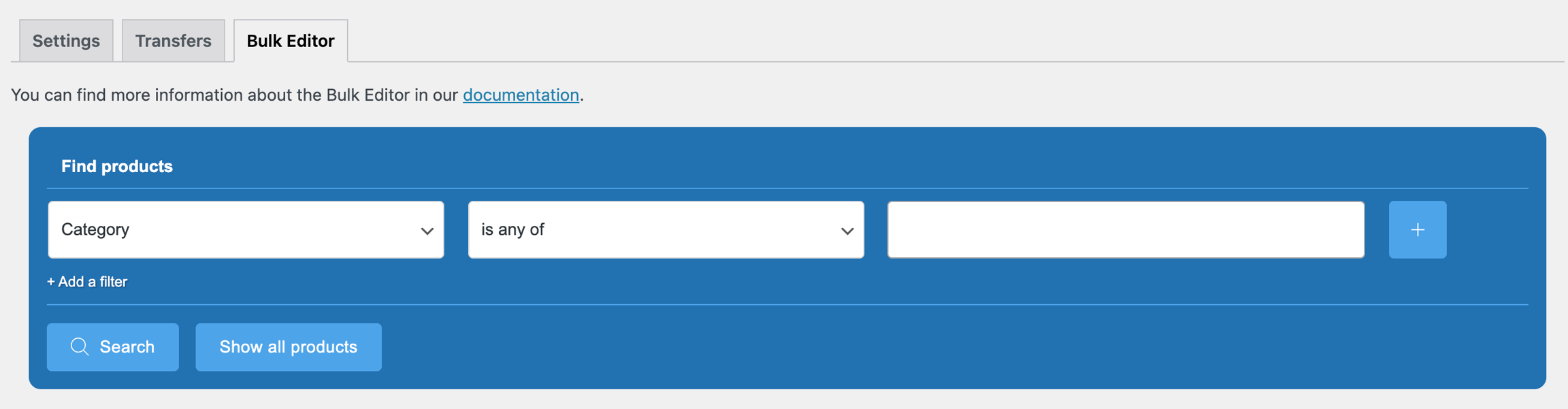
Navigate to Split Pay → Bulk Editor in your WordPress admin (top-level menu). No product query runs until you click Show all products or run a filter.
Filtering products#
Click Show all products for the full result set, or use the filter bar first. Category, SKU, and product-attribute filters describe WooCommerce catalog fields; FluentCart rows show dashes for the WooCommerce-only Category and SKU columns. Available filter criteria include:
| Filter | Description |
|---|---|
| Category | Filter by WooCommerce product category (e.g., "T-Shirts", "Electronics"). |
| Product Name | Search by product name or partial name. |
| SKU | Search by product SKU. |
| Product Attribute | Filter by any product attribute (e.g., color, size, brand). |
Filter conditions
Each filter supports two conditions:
- Is any of — Show products that match any of the selected values (inclusive filter).
- Is none of — Exclude products that match any of the selected values (exclusive filter).
Combining multiple filters
You can add multiple filters to create more specific queries. Click Add Filter to add additional criteria. All filters are combined with AND logic — products must match all active filters to appear in the results.
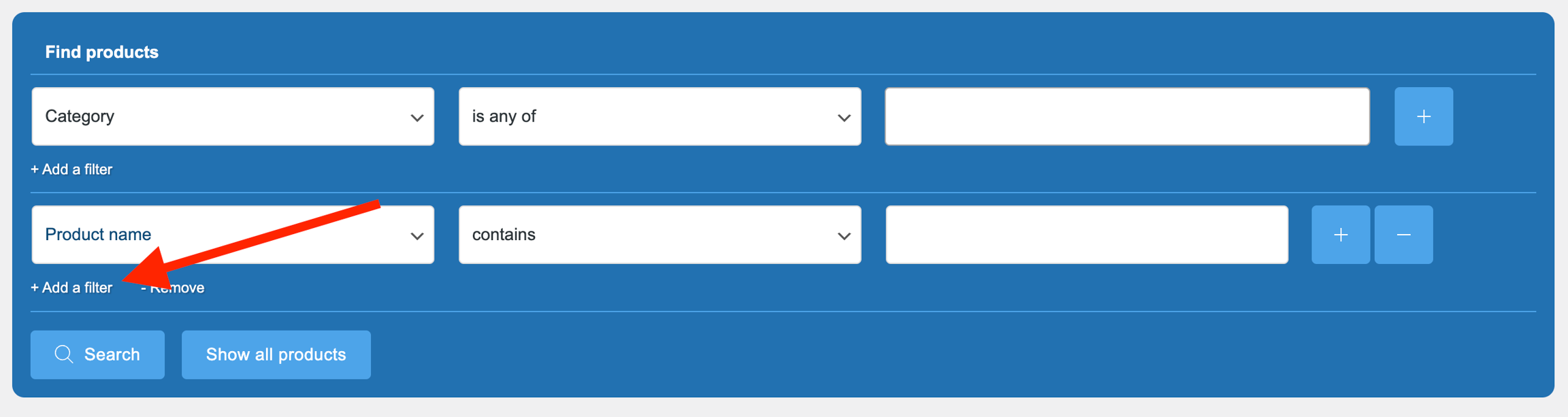
Example: To find all products in the "Clothing" category with a "Blue" color attribute, add a Category filter set to "Is any of: Clothing" and a Product Attribute filter set to "Is any of: Blue".
Editing transfer settings#
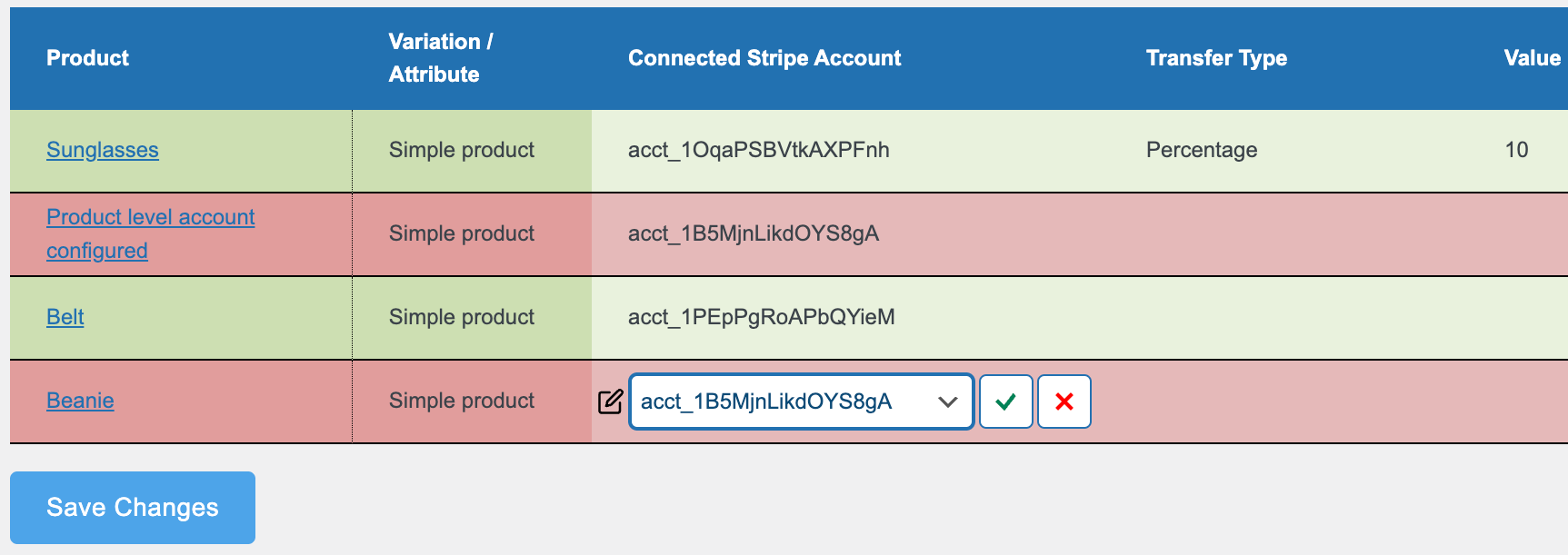
Each row in the Bulk Editor table represents a product and shows its current transfer configuration. You can edit the following fields inline:
- Connected Account — The Stripe account ID (
acct_...) that will receive transfers for this product. - Transfer Type — Choose Percentage or Fixed Amount.
- Transfer Value — The percentage or fixed amount in the order currency to transfer.
- Shipping Split — Set the product’s shipping transfer type and value.
Make your changes directly in the table. Modified rows are highlighted to show unsaved changes. Click Save Changes when you're done to apply all changes at once.
Save Changes checks only the value for each row’s selected transfer type, so an old value left in the hidden field of the other type doesn’t block the save. If a value is invalid — for example, a percentage above 100, a negative number, or more than two decimal places — Split Pay saves nothing, opens the editor for the first invalid field, and points to it.
Append a recipient without replacing rows#
Append Recipient adds one recipient to selected WooCommerce products and displayed variations while preserving their other saved split rows. It does not modify FluentCart rows.
Select the product and variation rows you want to change on the current results page, then click Append Recipient.
Choose the connected account, the Percentage or Fixed Amount product split, and any optional shipping split.
Click Preview. Review the exact selected, append, already-present, conflict, and blocked counts before continuing.
If the same recipient already exists with different settings, choose Merge new settings into that row or Skip products with that recipient, then click Apply Append.
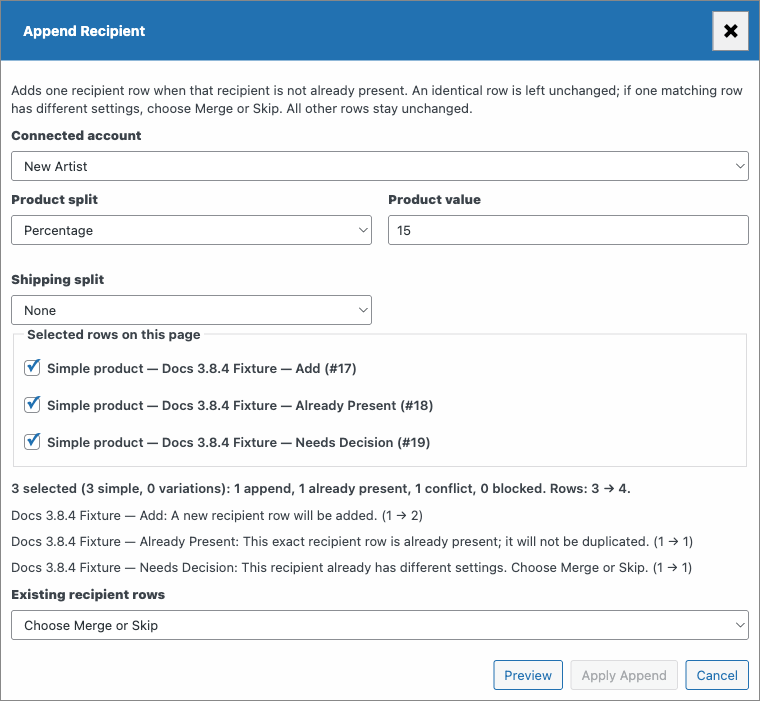
An identical recipient row is not duplicated. Split Pay will not guess which row to merge if the same recipient already appears more than once — skip that product or edit it directly.
Before Apply, the selected recipient and every existing recipient on each selected row must match safely in the store’s active Stripe mode. A row that inherits recipients from another product or falls back to a store-wide product split is blocked. If any selected row is blocked, Split Pay changes nothing.
Preview again if you change the selected rows, recipient settings, product data, or connected-account list. Split Pay refuses to apply a stale preview.
Common use cases#
- Onboarding a new vendor: Filter by the vendor's product category, then set the connected account ID and transfer values for all their products simultaneously.
- Changing transfer rates: Filter to find all products with a specific connected account, then update the transfer percentage across the board.
- Auditing settings: Use the "Show All Products" view to spot products that are missing transfer configurations or have unexpected values.
- Seasonal adjustments: Temporarily change transfer percentages for a product category during promotional periods.