
WCFM Marketplace
Use WCFM’s vendor, product, and commission data to create automatic Stripe Connect transfers after a supported platform charge is paid.
Overview#
WCFM (WC Frontend Manager) runs your marketplace: vendor sign-ups, vendor dashboards, products, commissions, and its own optional withdrawal system.
Split Pay keeps the customer charge on your Stripe platform account, then creates separate Stripe Connect transfers for the WCFM vendors and rules it can resolve. Normal transfers follow the paid order; a delayed or asynchronous payment can move later.
In one line: WCFM identifies the vendor and commission; Split Pay creates the separate Stripe transfer and records the result.
WCFM, Split Pay, and what the integration adds#
Each piece does something the other can’t. The integration is the glue that makes them work as one system.
| On its own | What it does | The catch |
|---|---|---|
| WCFM alone | Runs the marketplace — vendors, dashboards, registration, and commission tracking. | Its withdrawal and payout settings decide how WCFM pays vendors. |
| Split Pay alone | Creates separate transfers from a successful supported platform charge. | Has no idea who your vendors are. You’d hand-attach the right Stripe account and percentage to every single product yourself. |
| The integration (the glue) | Teaches Split Pay who WCFM’s vendors are. Vendors auto-onboard to Stripe, their products auto-link to their account, and Split Pay can pull the commission rate straight from WCFM. | Requires Split Pay PRO, WCFM, a supported Stripe gateway, and connected vendors. |
What the integration adds, concretely:
- Automatic Stripe transfers. Each eligible paid order can create the vendor transfer without a separate WCFM withdrawal.
- Automatic vendor onboarding. New WCFM vendors get a Connect with Stripe button in their WCFM dashboard and are given the Split Pay vendor role automatically.
- Automatic product linking. When a vendor saves a product, it’s linked to that vendor’s connected Stripe account for you.
- Commission rates from one place. Split Pay can reuse the rates WCFM already knows — including membership tiers — so you set the split once, not twice.
- Double-payout safeguards. Split Pay detects active WCFM payout paths and can block WCFM’s scheduled and order-status automatic withdrawals. Manual withdrawals and WCFM checkout gateways remain available.
Compatibility#
- Split Pay: PRO. The marketplace behaviour (auto-onboarding, auto-linking, membership commissions) is a premium feature. See Activating PRO.
- WCFM: the WCFM family from WC Lovers — WC Frontend Manager (core), plus WCFM Marketplace for multi-vendor. WCFM Membership is optional and only needed if you want commissions to follow membership tiers. Split Pay detects each module separately and shows you which are present.
- WooCommerce + Stripe gateway: WooCommerce with the official WooCommerce Stripe Payment Gateway (or Payment Plugins for Stripe). Split Pay reads the Stripe charge the gateway creates and transfers from there. See Quick Start.
- WordPress: 6.1 or later.
Setup#
Have WCFM and Stripe working first. Install and activate WC Frontend Manager and WCFM Marketplace (and WCFM Membership if you use tiers). Connect WooCommerce to Stripe with the WooCommerce Stripe Payment Gateway, and make sure Stripe Connect is enabled on your platform account. See Stripe Connect Prerequisites.
Install and activate Split Pay PRO. Add the Stripe platform key on Split Pay → Integrations, use Refresh from Stripe in Connect Status, and confirm the current mode and exact platform identity. See Quick Start.
Open Split Pay → Integrations and find the Marketplace integrations section. A WCFM card appears with an Active badge and a chip for each detected module (Frontend Manager, Marketplace, Memberships). This card is the control panel for everything below.
Turn on Enable the WCFM integration. This master switch is off by default. Until it is enabled, Split Pay does not add WCFM vendor roles, product links, dashboard onboarding, or commission routing.
Leave the two automation toggles on (default). Auto-assign Split Pay vendor role gives every new WCFM vendor the role that triggers Stripe onboarding. Auto-link new vendor products to Stripe attaches each product a vendor saves to that vendor’s connected account. Together they are what make the marketplace “just work” with no per-product setup.
Choose your commission source. Pick where each vendor’s transfer percentage comes from — your own Split Pay values (Manual per-vendor %), or the vendor’s WCFM membership tier. This one choice changes how several screens behave; see Choosing where commissions come from below.
Set the default share for newly auto-linked products. With Manual per-vendor %, Default vendor share for auto-linked products (%) sets the percentage assigned when a new vendor product is linked. It does not rewrite existing product links. Leaving it blank uses a valid legacy global percentage if one is saved, otherwise 100%. In membership mode, a resolved membership percentage wins and this value is only the fallback.
Choose how to coexist with WCFM’s own payouts. Set WCFM payout coexistence to warn about active WCFM payout paths or block its scheduled and order-status automatic withdrawals. With Reconcile or Guard, you can also turn on Mark WCFM order lines paid. See Avoiding double payouts.
Run a test sale. In Stripe test mode, connect a test vendor, then pay for one of their products. After the supported platform charge succeeds, verify the transfer in Stripe and in Split Pay’s Transfers log. Repeat the checks in live mode before accepting live orders.

Choosing where commissions come from#
The Commission source setting on the WCFM card decides where each vendor’s transfer percentage comes from. Pick the one that matches how you already run your marketplace:
| Choose… | When you want… | How the split is decided |
|---|---|---|
| Manual per-vendor % (default) | To set splits yourself in Split Pay — one global percentage, or per product. | Your Split Pay global or per-product transfer values apply, exactly as on a non-marketplace store. |
| WCFM membership tier | Commissions to follow the tiers you already configured in WCFM Membership, so you maintain rates in one place. | By default, Split Pay uses the first clean percentage it can resolve: the vendor’s membership plan, then a valid WCFM per-vendor percentage override. The vendor receives 100 − commission %. If neither resolves, the saved Split Pay row remains the fallback. |
The default membership reader checks a percentage plan first, then a valid WCFM per-vendor percentage override. A Percent + Fixed override counts only when its fixed part is blank or zero. If neither source yields a clean percentage, Split Pay keeps the saved auto-link, product, or global fallback and reports that vendor in the “no resolvable membership %” status check.
For auto-linked products, the Default vendor share for auto-linked products (%) setting is the manual-mode default and the membership-mode fallback. The card warns when the effective default is 100%, because that leaves no product-share remainder on the platform. The spp_wcfm_autolink_default_percent filter can adjust the resolved value to a number above 0 and no more than 100.
WCFM Marketplace commission rules#
If your plans use WCFM Marketplace’s Commission Mode and Commission Percent fields, turn on Read WCFM Marketplace commission rules on the WCFM card. This PRO setting is off by default and takes effect only when Commission source is WCFM membership tier. While it is off, Split Pay keeps the default reader described above.
Turning it on can change what existing vendors receive. For example, when the default reader pays a vendor from a 20% rule on their WCFM profile, the vendor receives 80%. With this option on and WCFM’s Commission For set to the vendor, the same rule pays the vendor 20%, less any commission tax. Run a Test-mode order for a vendor on each plan before you accept live orders.
With this option on, Split Pay uses the first rule it finds in this order:
- An Override you entered for the vendor’s plan in the card’s Vendor plans table.
- The commission rule saved on the vendor’s WCFM profile.
- The vendor’s membership plan — used only when the vendor’s profile has no commission rule or is set to WCFM’s global rule.
Split Pay follows WCFM’s Commission For setting and commission tax. When the commission is the admin’s fee, the vendor receives the rest after the fee and the tax on that fee. For example, a 15% admin commission plus 21% tax on that commission leaves an 81.85% vendor merchandise share. When the commission is the vendor’s own share, Split Pay deducts the commission tax from that share. Product VAT and shipping follow your separate Split Pay settings.
Split Pay can’t read a fixed or tiered rule, Percent + Fixed with a non-zero fixed part, a blank Commission Percent, or a percentage that works out to a vendor share below 0% or above 100% — for example, a 90% admin commission plus 21% tax on that commission. For those, the product’s saved Split Pay split remains in effect. If such a rule is saved on the vendor’s profile, Split Pay doesn’t fall back to the plan. Connected vendors with products and no readable rule are counted in the Vendors with products but no resolvable membership % status check. Plan changes apply to future calculations, not already successful transfers. Stripe processing-fee allocation is a separate option.
What WCFM controls when membership mode is on#
When Commission source = WCFM membership tier, the default reader uses the vendor’s percentage plan first and a valid WCFM per-vendor percentage override second. Only when neither resolves does the saved Split Pay row remain in effect. With Read WCFM Marketplace commission rules on, the profile rule comes before the plan instead. Split Pay makes the WCFM-controlled state visible on every screen where you might otherwise set a transfer value.
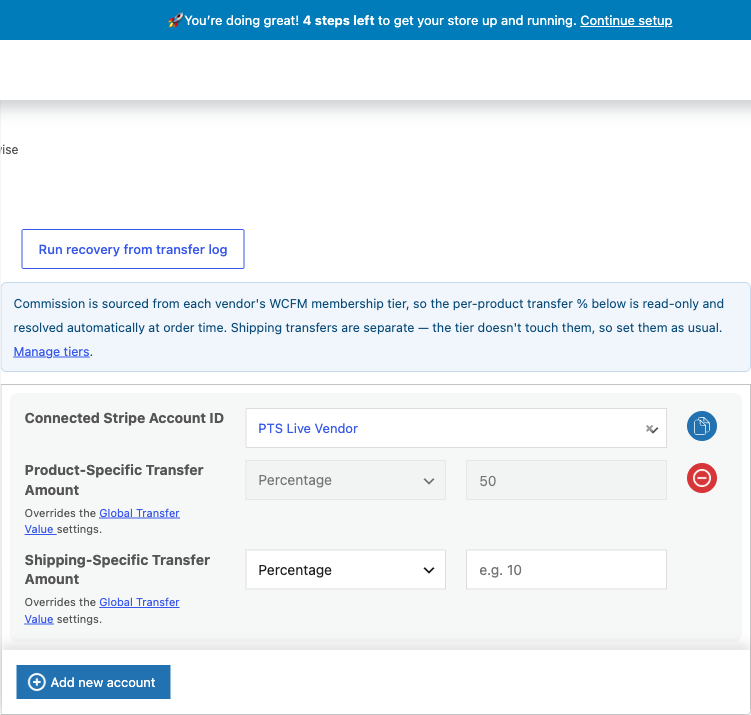
On a vendor’s product#
The per-product transfer fields become read-only, with a note pointing back to the Marketplaces settings. When a membership percentage resolves at order time, it replaces the saved product split, including a fixed-amount split.
Shipping is separate. The membership tier governs only the product commission split, so the shipping transfer fields stay editable — decide how much of each vendor’s shipping fee they keep as usual (per product, or via the global shipping transfer). Those shipping values still apply in membership mode; only the product split is taken over by the tier.
On Global Transfer Settings#
The main Global Transfer Settings tab shows a banner clarifying that vendor products are paid at the membership percentage, and that the global value applies only to your own (non-vendor) products and as a fallback.
In the Bulk Editor#
The Bulk Editor shows the same warning, so a bulk change you make won’t quietly skip your marketplace vendors.
These locks and notices only appear in membership mode. If your commission source is Manual per-vendor %, the per-product and global fields work exactly as they do on a normal store.
Vendor onboarding (Connect with Stripe)#
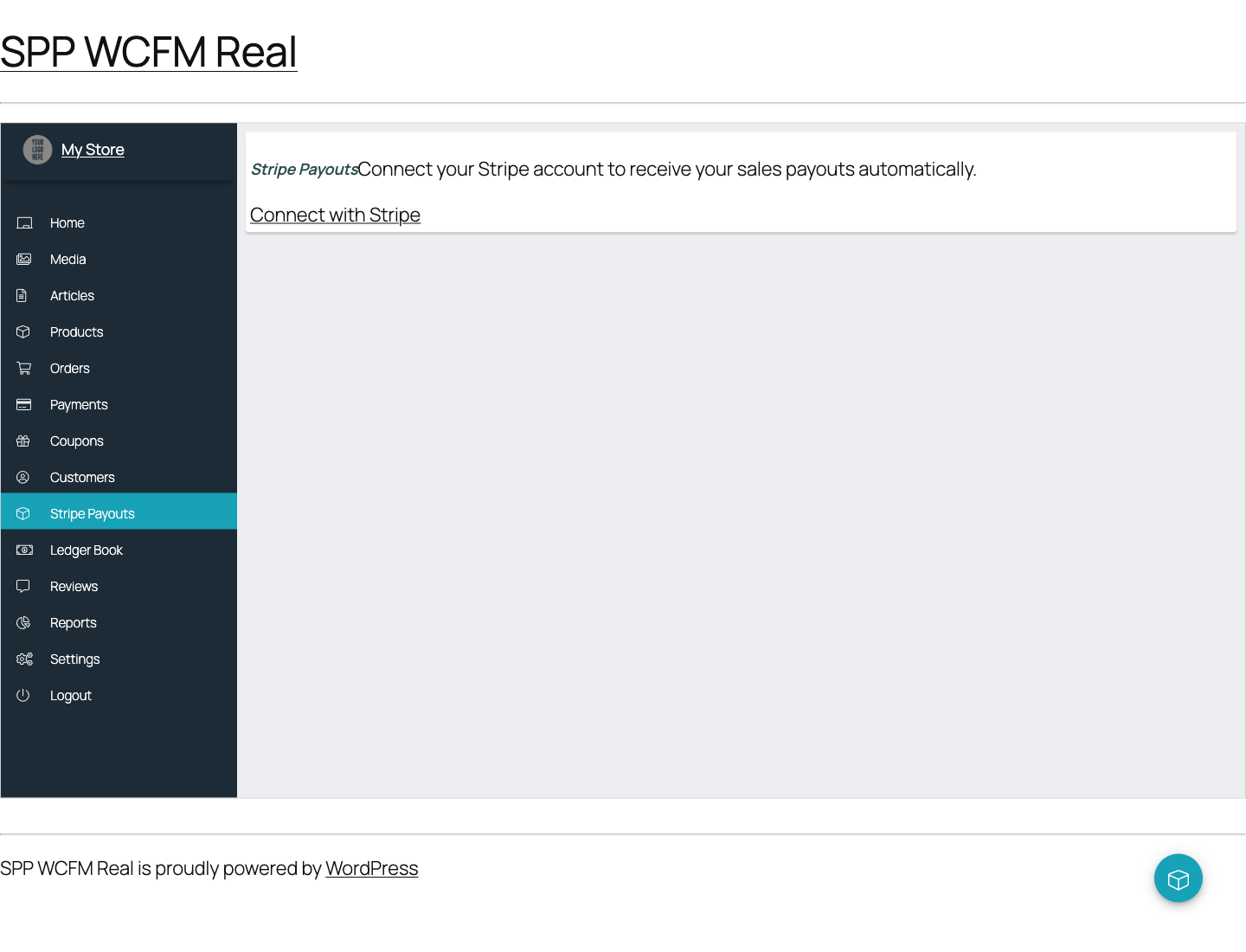
Each vendor needs a Stripe account connected to your platform. With auto-assignment on, every WCFM vendor gets a Stripe Payouts tab in their WCFM dashboard with a Connect with Stripe button.
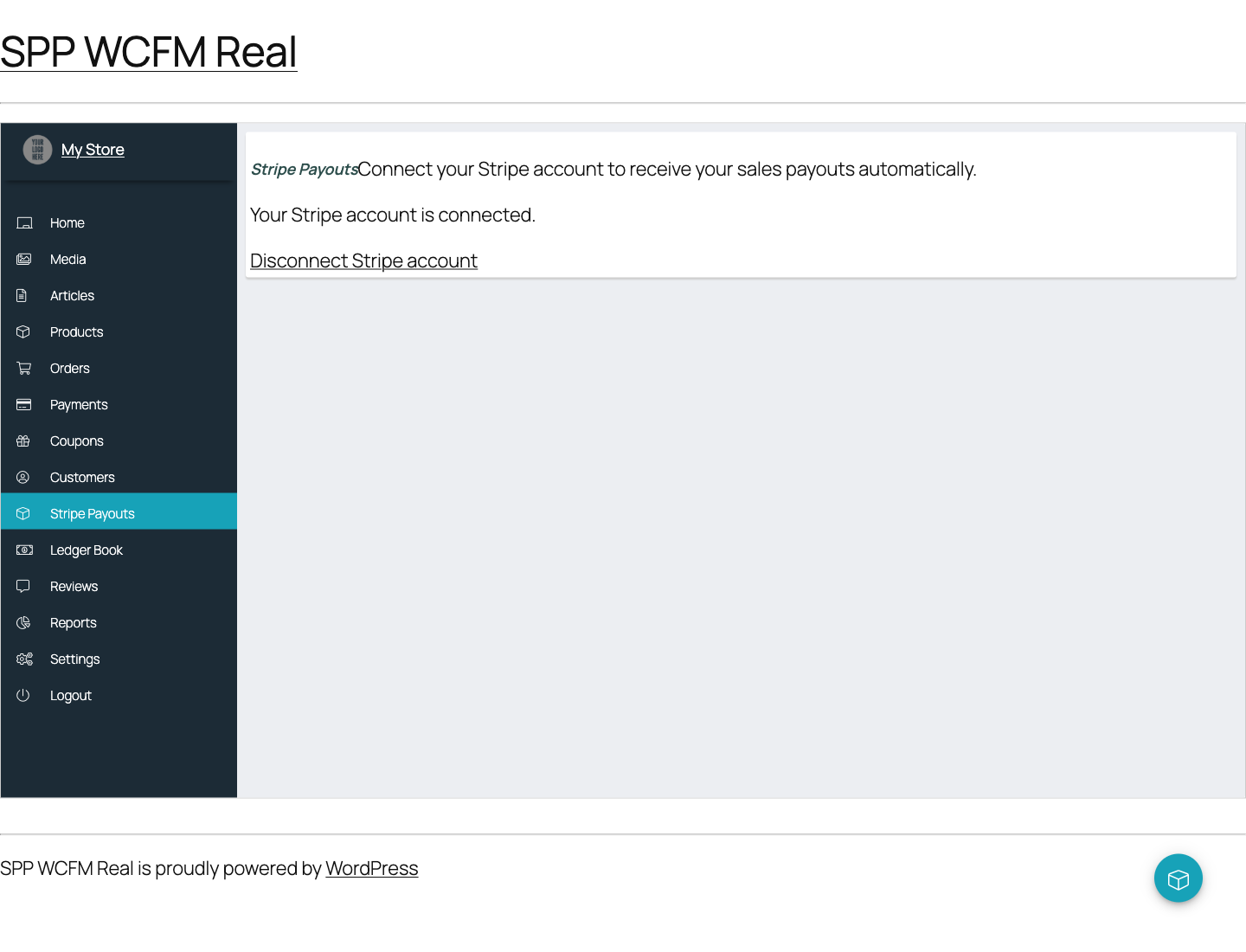
Once a vendor finishes onboarding, the same tab confirms the connection. Eligible paid orders can then transfer the vendor’s saved share automatically.
Disconnecting#
A vendor can disconnect from the same Stripe Payouts tab. Disconnecting removes the local vendor-account link but never deletes the Stripe account. When an auto-linked product carries Split Pay’s ownership record, Split Pay removes its route only if that record proves it belongs to that vendor and account; manually configured routes are preserved. A vendor product auto-linked without an ownership record loses its Split Pay recipient settings when its first recipient is the disconnected account. Reconnecting applies the current auto-link settings again.
You can also onboard vendors yourself, or use the platform-agnostic [split_pay_vendor_connect] shortcode on any page. Both routes are covered in Connecting Vendor Stripe Accounts. The Marketplaces card’s Vendors connected to Stripe status check shows how many vendors still need to connect.
Link a vendor to an existing Stripe account#
Use this when a vendor’s Stripe account was created outside Split Pay, for example in the Stripe Dashboard. The form is on the WCFM card under Split Pay → Integrations while Split Pay PRO is active, and only site administrators can use it.
Open Split Pay → Connect Status and click Refresh from Stripe, so the account is listed in the current Test or Live mode.
On the WCFM card, under Link a vendor to an existing Stripe account, choose the vendor and the Stripe account, then click Link vendor.
The vendor list shows WCFM vendors that have no linked account in the current mode, or whose linked account isn’t in the synced list, and the account list shows synced accounts that no vendor holds. Split Pay saves the link for the current Test or Live mode, then links the vendor’s products that have no Split Pay recipient yet, using the Default vendor share for auto-linked products (%) described in Setup. A vendor with more than 50 products has them linked in the background.
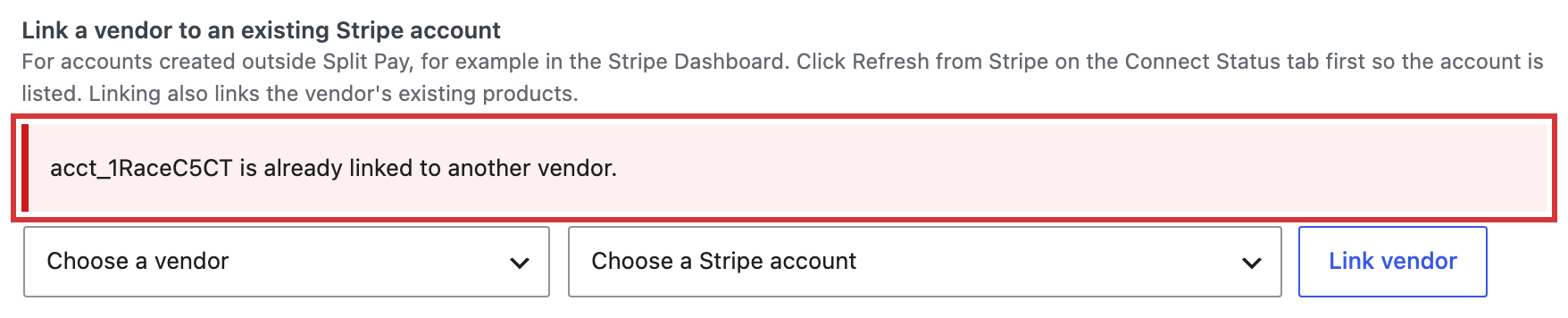
- Another user already holds the account. Split Pay refuses the link with acct_… is already linked to another vendor. when any other user holds that account on this site in Test or Live, including an account ID saved on another user’s profile. Two links for the same account can’t both succeed.
- The vendor already has a link. Split Pay never replaces it: … is already linked to acct_…, so nothing was changed.
- Onboarding status. Linking doesn’t mark the vendor’s Stripe onboarding as finished, so their Stripe Payouts tab can still ask them to finish it.
Identity-bound generic Connect links#
The PRO setting Use identity-bound generic Stripe Connect links for WCFM vendors is off by default. Find it on Split Pay → Advanced, under Advanced transfer options. When enabled with the WCFM integration:
- A valid signed generic Connect link sends the visitor to WCFM’s Stripe Payouts screen.
- The visitor must sign in as a WCFM vendor without administrative capabilities before starting Connect.
- The onboarding result is attached through that vendor’s WCFM account in the requested Test or Live mode.
While this option is off, generic Connect links work without the WCFM routing and vendor checks above.
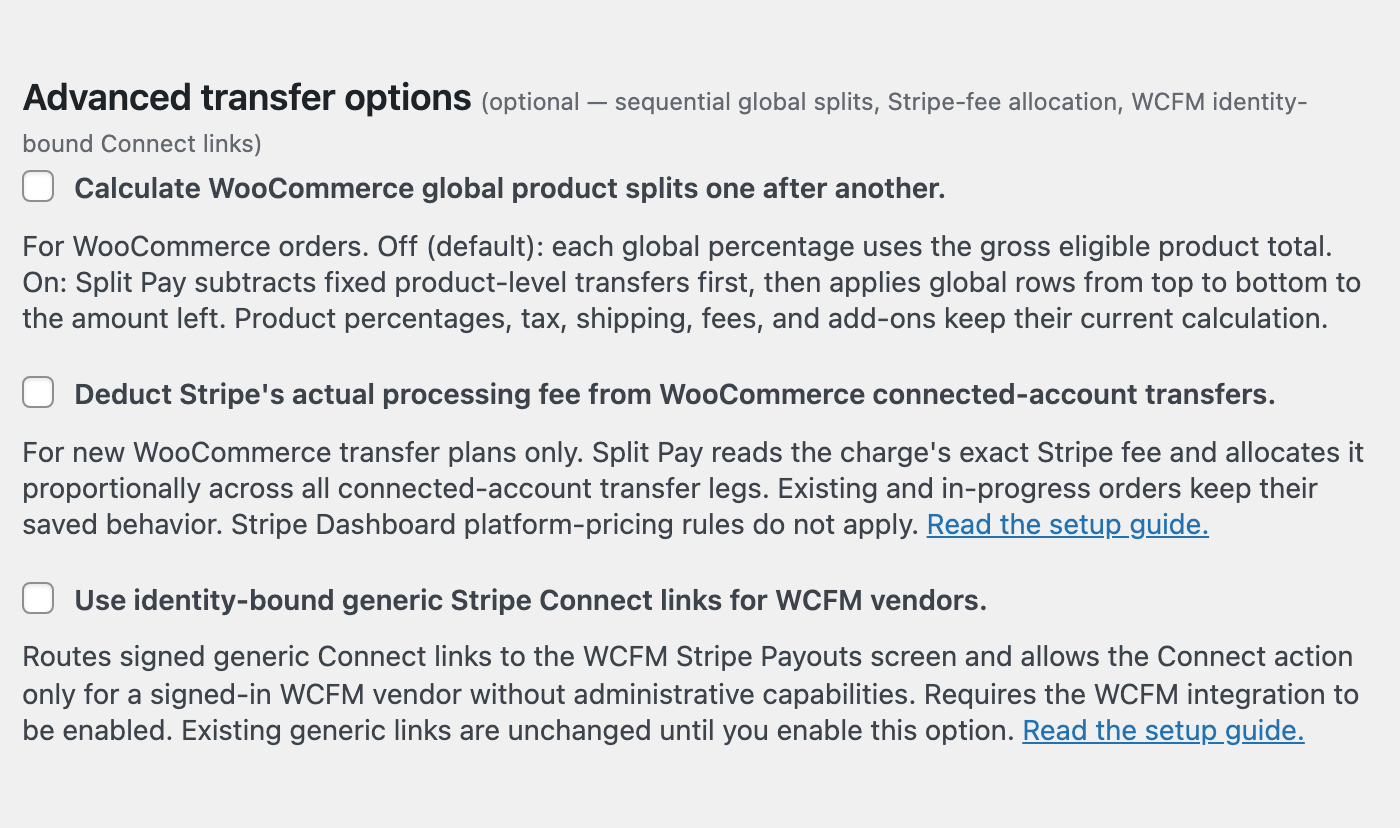
Avoiding double payouts#
WCFM has its own payout system (scheduled withdrawals, checkout gateways, and manual withdrawals). If one of those pays the same commission as Split Pay, a vendor could be paid twice. Split Pay detects active WCFM payout settings and surfaces them on the card as a double-pay risk. The WCFM payout coexistence setting decides whether Split Pay only warns or also blocks WCFM’s scheduled and order-status automatic withdrawal triggers:
| Mode | What Split Pay does | Best when |
|---|---|---|
| Detect & warn (default) | Only watches and warns you on the card. Changes nothing in WCFM — the least invasive option. | You want to review the situation and adjust WCFM’s settings yourself. |
| Reconcile | Blocks WCFM’s scheduled and order-status automatic withdrawals. Leaves WCFM’s stored settings, checkout gateways, and manual withdrawals as they are. Doesn’t change WCFM’s paid status unless Mark WCFM order lines paid is on. | You want the automatic-withdrawal safeguard while keeping manual withdrawals and WCFM checkout gateways available. |
| Guard | Applies the same automatic-withdrawal block as Reconcile and treats WCFM’s paid status the same way. It does not disable manual withdrawals or WCFM checkout gateways. | You prefer the Guard label for that same safeguard. |
If Split Pay should be the only system paying vendors, disable WCFM’s payout gateways, manual withdrawal access, and automatic withdrawal settings in WCFM. Reconcile and Guard block only the scheduled and order-status automatic triggers.
Mark WCFM order lines paid#
Mark WCFM order lines paid is a PRO setting on the WCFM card. It is off by default and works only when WCFM payout coexistence is Reconcile or Guard. While it is off, Split Pay never changes WCFM’s paid status: a line Split Pay has paid still shows as UNPAID in WCFM.
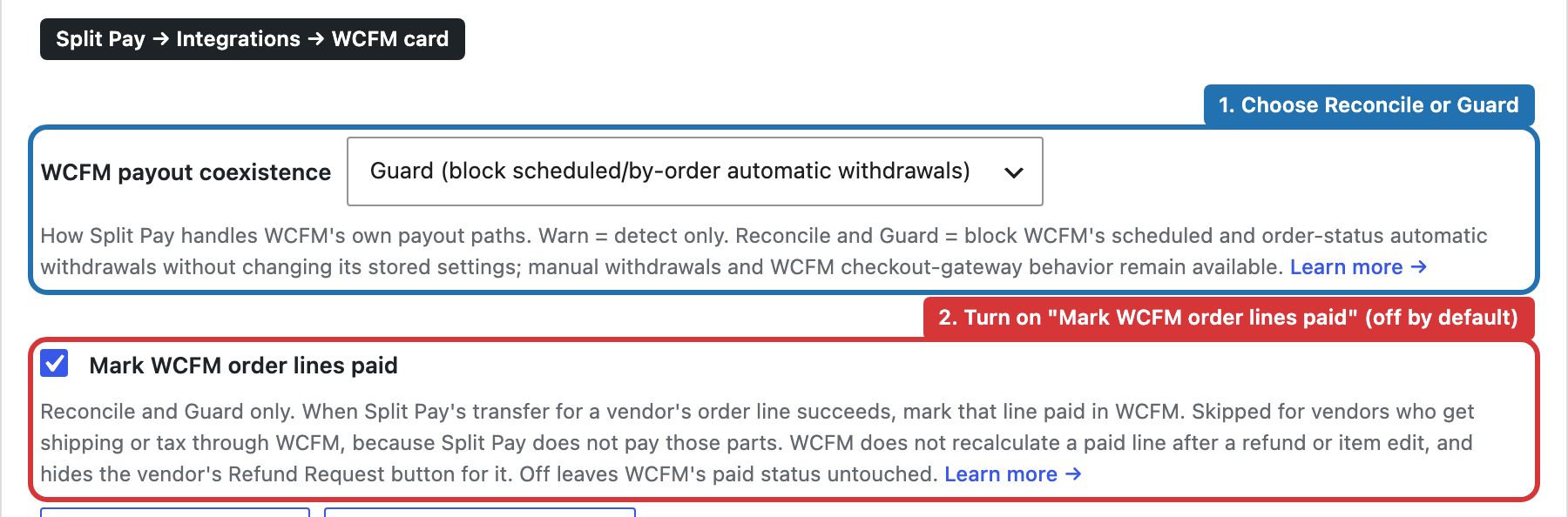
When it is on and Split Pay’s product transfer for a vendor’s order line succeeds, Split Pay marks that vendor’s WCFM commission line for the same order line as paid, and WCFM shows it as PAID. Split Pay leaves a line as it is when:
- The vendor gets shipping or tax through WCFM. WCFM’s line then includes shipping or tax that Split Pay doesn’t pay. Split Pay marks lines only for vendors whose WCFM commission settings have both Shipping cost goes to vendor? and Tax goes to vendor? turned off; WCFM’s global commission settings treat both as on until you turn them off. If Split Pay can’t read these WCFM settings, it leaves the line unpaid.
- The transfer isn’t a product transfer for that line. Store-wide (global) transfers, shipping and add-on transfers, and a payment covered entirely by the vendor’s outstanding debt (no Stripe transfer) don’t mark a line.
- The transfer went to an account that isn’t that line’s vendor. Only the vendor linked to the receiving Stripe account has their own line marked.
- The transfer succeeded before you turned the setting on, or the line isn’t UNPAID in WCFM.
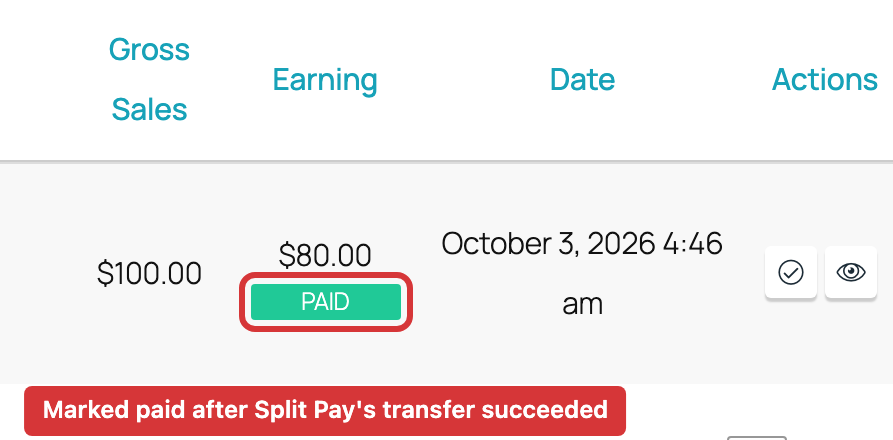
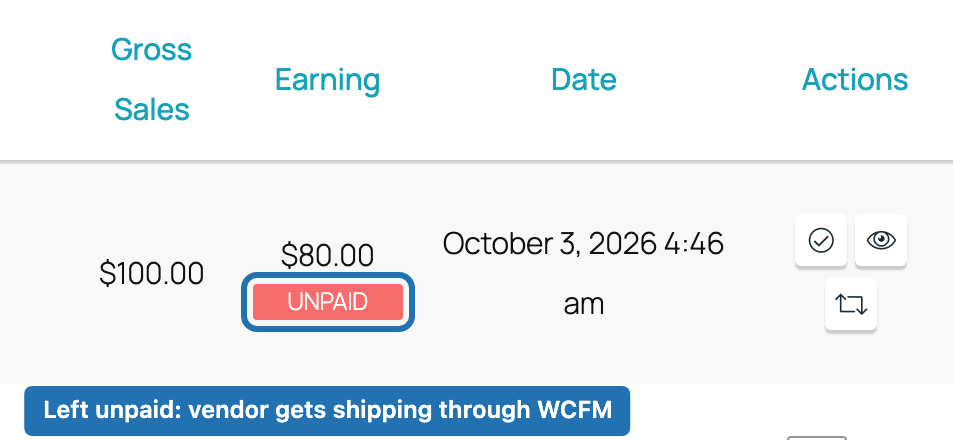
Once a line is paid, WCFM doesn’t recalculate it after a refund or an item edit, and hides the vendor’s Refund Request button for it; refund from the WooCommerce order screen instead. The amount WCFM shows is WCFM’s own commission figure, not the Stripe transfer amount.
Recommended setups for common goals#
| Your goal | Commission source | Coexistence | Notes |
|---|---|---|---|
| “Pay vendors automatically; I set one flat split for everyone.” | Manual per-vendor % (global) | Guard | Set a single global transfer percentage; leave auto-assign and auto-link on, and disable the remaining WCFM payout paths. |
| “Different vendors earn different rates by membership tier.” | WCFM membership tier | Guard | Maintain rates in WCFM Membership; Split Pay uses a percentage plan first, then a valid per-vendor percentage override. Disable the remaining WCFM payout paths and watch the “no resolvable membership %” check when neither applies. |
| “I’m migrating from WCFM withdrawals and want to watch first.” | Either | Detect & warn | Test Split Pay first, then disable WCFM’s overlapping payout paths before going live. Reconcile or Guard blocks only its scheduled and order-status automatic withdrawals. |
| “Keep WCFM’s commission reports accurate.” | Either | Reconcile or Guard | Turn on Mark WCFM order lines paid, so a vendor’s WCFM line shows as paid once Split Pay’s product transfer for it succeeds. It skips vendors who get shipping or tax through WCFM, and WCFM stops recalculating a line once it is paid. See Mark WCFM order lines paid. |
Limitations and known issues#
- PRO only. The WCFM behaviour (onboarding, linking, membership commissions, coexistence) requires Split Pay PRO. On the free version the WCFM card still detects WCFM, but the automation does not run.
- Membership mode needs a resolvable percentage. Split Pay checks a percentage plan, then a valid per-vendor percentage override. If neither applies, it keeps the saved Split Pay fallback and the card counts that vendor — see Commission source. Read WCFM Marketplace commission rules changes that order when on.
- Vendors must connect Stripe to be paid. A sale for a vendor who hasn’t finished Stripe onboarding can’t be transferred. The “Vendors connected to Stripe” check shows how many still need to connect.
- WCFM’s paid status is separate from Stripe. With Mark WCFM order lines paid off (the default), WCFM keeps showing lines as UNPAID after Split Pay pays the vendor. Even with it on, some lines stay unpaid — see Mark WCFM order lines paid.
- Verify each mode. Test and Live have separate credentials and connected-account records. The same exact Stripe account may be valid in both modes; an email address or business name is not proof. Confirm the account ID and platform under Connect Status.
- Stripe still decides transfer eligibility. Minimum amounts, currencies, capabilities, and country combinations are enforced at runtime. See International Transfers.
Troubleshooting#
- No WCFM card on the Integrations tab. Confirm WC Frontend Manager and WCFM Marketplace are installed and active, and that Split Pay is up to date.
- The card’s automation controls are greyed out. The marketplace automation is PRO. Activate your license; see Activating PRO.
- A vendor’s products aren’t getting paid. Check the Vendors connected to Stripe count — the vendor likely hasn’t finished Stripe onboarding. Use Back-fill vendor links on the card to link existing products after a vendor connects.
- Membership mode pays the wrong amount (or a Split Pay fallback). Check the vendor’s percentage membership plan first, then their WCFM per-vendor commission override. Use Re-check membership % after changing either source. With the default reader, the vendor is paid
100 − commission %, and Percent + Fixed resolves only when the fixed part is blank or zero. With Read WCFM Marketplace commission rules on, check the vendor’s profile rule before the plan, and check WCFM’s Commission For and commission tax settings, which change the amount — see WCFM Marketplace commission rules. - A vendor got paid twice. An overlapping WCFM payout path is still available. Disable WCFM’s payout gateway or manual withdrawal path as applicable; Reconcile and Guard block only scheduled and order-status automatic withdrawals. See Avoiding double payouts.
- A paid vendor still shows UNPAID in WCFM. Check that WCFM payout coexistence is Reconcile or Guard and Mark WCFM order lines paid is on, that the vendor doesn’t get shipping or tax through WCFM, and that the transfer was a product transfer for that line, not a global, shipping, or add-on transfer. See Mark WCFM order lines paid.
- Linking a vendor says the account is already linked to another vendor. Another user on this site already holds that Stripe account. Check which vendor should own it before changing either link. See Link a vendor to an existing Stripe account.
- A test sale created no transfer. Under Connect Status, confirm Test mode, the exact platform account, and the connected vendor account. Then confirm the product belongs to that vendor, the platform charge succeeded, and the order note shows Split Pay’s result. See Quick Start.