
Troubleshooting
Follow the shortest evidence-first path from Connect readiness to the exact order, transfer plan, log result, and Stripe object.
Common reasons transfers fail#
Start with the exact order rather than changing the whole site. Most cases fall into one of these groups:
1. The order is not paid#
WooCommerce must report payment complete, or FluentCart must report a paid order through its Stripe method. Split Pay does not create the original transfer from a generic Stripe webhook alone.
2. A transfer leg is invalid#
The saved percentage, fixed amount, product, shipping, tax, fee, or add-on rule may produce no eligible amount or an amount below the runtime minimum for that currency. Use the exact order note; do not assume one universal minimum.
3. The mode or platform identity is wrong#
The order charge, Split Pay platform key, and connected recipient must belong to the same Test or Live context. Email addresses and business names are labels, not account-identity proof. New onboarding and strict identity routing use exact site-scoped Test/Live pairs. Until an administrator confirms an exact pair or completes a strict platform-key replacement, a site can keep resolving saved recipients by email, then name, then saved account ID.
4. Stripe rejects the source-bound amount#
Every Split Pay transfer uses the original charge as its source_transaction, including a WooCommerce transfer released later by Delay Transfers. An insufficient-balance message must be checked against the exact source charge ID, its amount and currency, the attempted leg, and all earlier transfers tied to that charge. Delay timing or automatic payouts alone do not prove the cause.
5. The recipient cannot receive the transfer#
The connected account may be missing, restricted, incompletely onboarded, or ineligible for the requested currency or country combination. If the order note ends with FAILED: destination account deauthorized by Stripe, Split Pay has stopped paying that account; see Accounts Split Pay has stopped paying.
6. The saved plan cannot be executed safely#
The order’s frozen plan may no longer match local records or Stripe. Split Pay stops before sending money when it cannot prove what already happened.
Four diagnostic steps#
Step 1: verify Connect readiness#
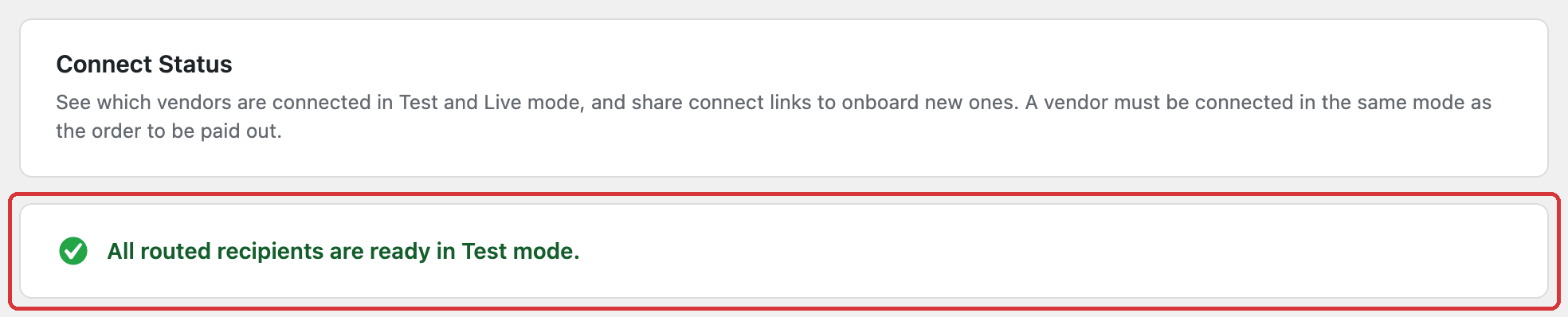
- Open Split Pay → Connect Status.
- Confirm the active Test or Live mode and exact platform account ID.
- Confirm the affected recipient account ID is present and ready for transfers.
Start with the mode-matched platform key shown for the store adapter. Payment Plugins for Stripe WooCommerce prefers its Split Pay Advanced key for normal order transfers, delayed releases, guarded retries, and store-initiated refunds, and requires that key for the row’s readiness, account sync, and check. If Advanced is empty, those normal paths can fall back to Payment Plugins’ own same-mode secret key; that fallback does not make the row ready and must not be assumed for every asynchronous failure, dispute, or recovery handler. FluentCart uses its Advanced override first and otherwise uses Split Pay’s detected same-mode platform-key chain for its normal transfer path. Check Woo webhook and Check Woo webhook on key are read-only; the FluentCart row check reads only its Advanced key and looks for an exact official WooCommerce Stripe URL that Stripe does not mark disabled, so verify FluentCart’s own webhook in FluentCart.
Step 2: verify the exact order and plan#
- Confirm whether the order is WooCommerce or FluentCart, which Stripe gateway processed it, and whether it is Test or Live.
- Confirm the charge succeeded on the same platform account shown in Connect Status.
- Review the rules and order data that applied when Split Pay froze the transfer plan. A delayed WooCommerce order can still read current product settings when it reaches Completed; before the first transfer request, Split Pay freezes the plan so later setting changes cannot alter that in-progress payout.
Step 3: match the records#
Read the newest Split Pay order note and, in PRO, the matching row under Split Pay → Transfers. Compare their redacted charge (ch_ or py_), pi_, tr_, and acct_ IDs with the corresponding Stripe objects. The exact error text decides the next action; see Common Errors.
Step 4: recover safely#
- WooCommerce: after fixing the named cause, use Retry Split Pay Transfers. Proven successes remain untouched; clearly failed legs get a fresh attempt. Split Pay cannot see payments you made yourself in Stripe, so don’t retry an order whose vendor you already paid by hand.
- FluentCart: recovery is automatic per leg. There is no manual Retry order action.
- Any safety-stop note: do not retry repeatedly or create a manual replacement transfer. Preserve the order and contact support.
Never paste a Stripe secret key into a support message, screenshot, command, or shared document. Redact customer data and full credentials.
Check Split Pay’s saved records#
Quick check: open Split Pay → Platform Status, scroll to the Diagnostics and help card, and click Check data integrity. It only reads Split Pay’s saved transfer records and recipient rows in your WordPress database. It changes nothing and does not contact Stripe. You need to be a site administrator to run it.
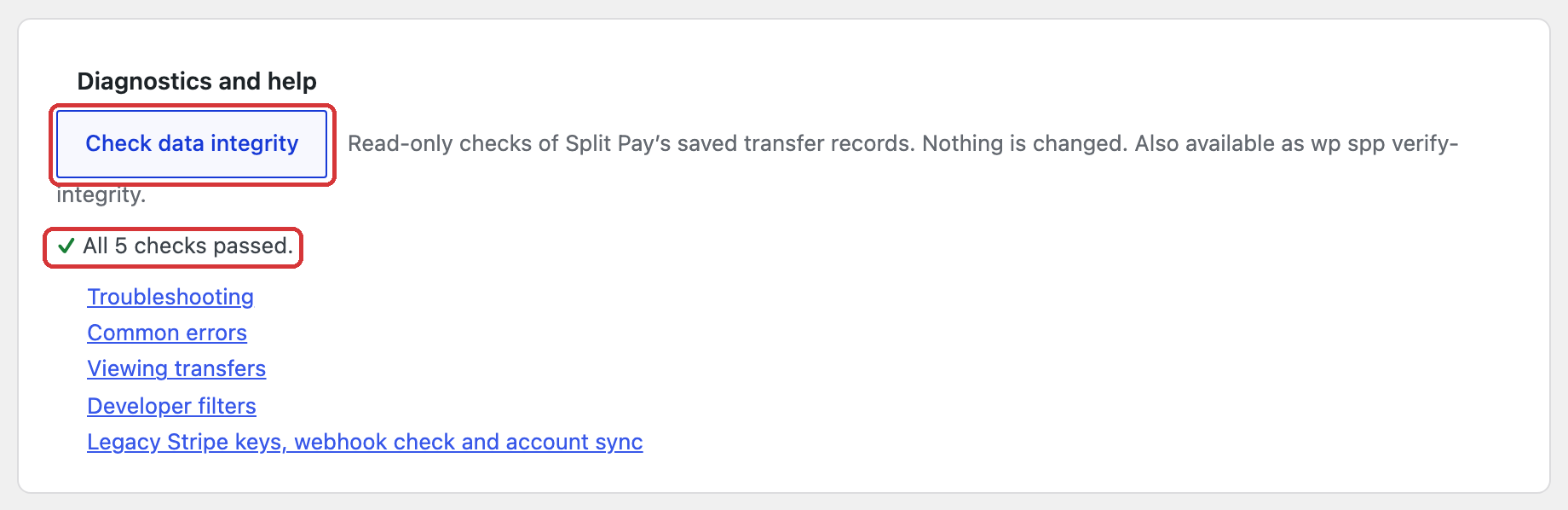
All 5 checks passed. means none of the checks found a problem. Otherwise, each failing check shows one warning row with a count:
- Transfer records name a Stripe account that is not in the synced account list. Usually harmless — the account was removed. Re-sync your accounts, for example with Refresh from Stripe on Connect Status.
- Saved recipient rows name a Stripe account that is not in the synced account list. Re-sync your accounts, then check that recipient in your transfer rules.
- Transfer records have neither a Stripe transfer ID nor a charge ID, have a negative amount, or are not marked Test or Live. Don’t edit the database by hand. Send the exact row text to support.
On a new install before Split Pay has created its database tables, the check reports that there is nothing to check. If a database query fails, it shows The checks could not run with the database error instead of reporting a pass.
The same checks run from WP-CLI as wp spp verify-integrity. It prints one warning per failing check and exits with an error status when any check fails.
If evidence points to a conflict#
Only isolate plugins or a theme after the order event and logs point to a hook or checkout conflict. Use a staging copy or Stripe Test mode, change one component at a time, and never use a live payment to diagnose it. Record the conflicting component’s exact name and version.
Known limitations#
These are the cases where Split Pay doesn’t do everything you might expect, who they affect, and what to do about them.
Very small amount-only refunds in three-decimal currencies#
- Who: WooCommerce stores that sell in a three-decimal currency — Bahraini dinar (BHD), Jordanian dinar (JOD), Kuwaiti dinar (KWD), Omani rial (OMR) or Tunisian dinar (TND).
- When: before an order’s first transfer, you record an amount-only refund (an amount not assigned to products or shipping) of 0.005 or less, for example 0.004 KWD.
- Effect: the order note names the refund as left out of the transfers, but the transfers aren’t lowered for it, and Split Pay doesn’t reverse it later. The vendor keeps that amount — at most 0.005 of the currency per order, under 2 US cents. See Refunds made before the first transfer.
A chargeback while the transfer is still held#
- Who: WooCommerce stores that use Delay Transfers PRO.
- When: a chargeback reaches Split Pay while the order’s transfer is still held, and a refund recorded on the order is deducted from that transfer when it is released.
- Effect: with nothing to reverse yet, Split Pay queues the chargeback reversal and retries it automatically for about 43 minutes. If the transfer is released in that time, the reversal is sized against the full order total instead of the total less the refund, so Split Pay recovers less than the disputed share from the vendor and your platform covers the difference. If the transfer is released later, the queued reversal has already stopped and the order notes say it is incomplete. In both cases, compare the order notes with the dispute and reverse any shortfall from the vendor’s transfer in Stripe; see Manual reversals in Stripe.
An “incomplete” note for a refund made while the transfer is held#
- Who: WooCommerce stores that use Delay Transfers PRO.
- When: you record a refund on the WooCommerce order while its transfer is held, and the order isn’t marked Completed within about 43 minutes.
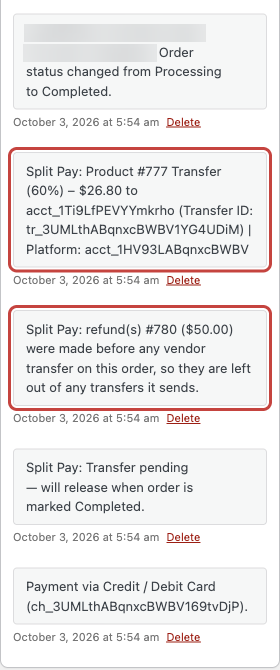
- Effect: besides deducting the refund from the held transfer, Split Pay queues its automatic refund recovery for that refund. With no transfer to reverse yet, the recovery retries for about 43 minutes, then adds the order note Split Pay: automatic recovery could not be queued or its bounded retries were exhausted. The money operation remains incomplete; retry it manually after platform settings are stable. The note doesn’t apply to this refund, and nothing is left to do for it. When the order is marked Completed, Split Pay deducts the refund from the released transfer and names it in a note such as Split Pay: refund(s) #123 ($20.00) were made before any vendor transfer on this order, so they are left out of any transfers it sends. Check for that note, and don’t retry the order or reverse anything in Stripe because of the first one. See Refunds made before the first transfer.
Partial refunds on an order with a routed fee#
- Who: WooCommerce stores that send an order fee to a connected account with Fee routing on Split Pay → Advanced.
- When: you make a partial refund on the WooCommerce order after the fee’s transfer was sent, and the refund names products or shipping — for example a product-only or shipping-only refund.
- Effect: Split Pay reverses part of the fee transfer even though no fee was refunded. It treats the fee transfer like an amount-only refund: it reverses the refund’s share of the order total — after any refunds deducted before the first transfer — from the fee transfer. For example, on a $100 order whose $10 fee goes in full to one account, a $50 product-only refund reverses the matching product transfers and also $5 of the fee transfer. A refund that includes the fee line is measured the same way, by its share of the order total rather than by how much of the fee it refunds. A refund of only the fee line is handled as an amount-only refund, so it reverses that share from every transfer on the order. If the fee’s recipient should keep the amount reversed, send it to them again from your Stripe Dashboard; if less was reversed than the fee you refunded, reverse the rest by hand — see Manual reversals in Stripe.
A bank payment that fails before its transfer is recorded#
- Who: WooCommerce stores that take payments which can fail after checkout, such as ACH Direct Debit or SEPA Direct Debit.
- When: Split Pay’s first try to send the order’s transfers hits a temporary error — for example, Stripe’s response doesn’t arrive — and the payment fails before Split Pay has recorded the transfer.
- Effect: Split Pay finds no recorded transfer for the failed payment, so it doesn’t add its ASYNC PAYMENT FAILED order note and doesn’t reverse anything. If Stripe did create the transfer, the vendor keeps it. Look in Stripe for a transfer made from that charge and reverse it there.
A Stripe refund after a transfer’s response was lost#
- Who: WooCommerce stores.
- When: Stripe accepts one of the order’s transfers, but its response never reaches your site — for example after a network error or a PHP timeout — so Split Pay has no transfer recorded. Before Split Pay’s automatic retry finishes that transfer, the order is refunded through the Stripe gateway, for example with WooCommerce’s Refund via Stripe button.
- Effect: the retry stops with the note Split Pay: transfers were stopped because Stripe could not prove this exact charge is captured, successful, in the order currency, and not refunded beyond the refunds already deducted from this order's transfers. Retry Split Pay Transfers stops the same way. With no transfer recorded, the refund can’t reverse anything, so the vendor keeps the whole transfer Stripe accepted. Find the transfer made from that charge in Stripe and reverse the refunded share by hand; see Manual reversals in Stripe. A refund recorded only on the WooCommerce order, not through Stripe, is handled automatically: the retry sends the original transfer once, and the refund reverses the vendor’s share of it.
Failed-payment reversals queued before you updated Split Pay#
- Who: stores that updated from Split Pay 3.8.4 while a failed-payment reversal was still waiting for an automatic retry.
- When: that reversal’s saved plan includes transfers paid from another Stripe charge on the same order, for example a payment that failed and a later payment that succeeded.
- Effect: Split Pay refuses that reversal before contacting Stripe, so nothing is reversed automatically and the order notes say the reversal is incomplete. Reverse only the transfers paid from the failed charge, by hand in Stripe.
Stripe-fee allocation with a manual refund before the first transfer#
- Who: stores with Stripe-fee allocation PRO turned on.
- When: before an order’s first transfer, you record a refund on the WooCommerce order that doesn’t go through Stripe.
- Effect: Split Pay sends the transfers less the refund, but still deducts the full Stripe processing fee of the original charge from them, because Stripe charged that fee on the whole payment. If the fee no longer fits within the smaller transfers, Split Pay stops before sending any transfer; pay the recipients by hand in Stripe. A refund that reaches Stripe before the first transfer stops the order’s transfers instead — see Refunds made before the first transfer.
Non-card payments with Stripe-fee allocation#
- Who: WooCommerce stores with Stripe-fee allocation PRO turned on.
- When: an order is paid with iDEAL, SEPA Direct Debit, Bancontact or another non-card method — one whose Stripe charge ID starts with
py_. - Effect: Stripe records these payments with the balance-transaction type
payment, and Split Pay’s fee check accepts only the typechargethat card payments have. So the order stops before any transfer with the note Split Pay: transfers were stopped before sending because Stripe's exact processing fee for this charge could not be verified. On an order that isn’t held, Retry Split Pay Transfers pays each recipient their full share without deducting the fee, and your platform covers the fee. A held order — Delay Transfers, released when the order is Completed — stops again on every Retry until you turn Stripe-fee allocation off. With fee allocation off, non-card payments split normally.
A Retry after Stripe’s processing fee couldn’t be verified#
- Who: WooCommerce stores with Stripe-fee allocation PRO turned on.
- When: an order stops with the note Split Pay: transfers were stopped before sending because Stripe's exact processing fee for this charge could not be verified. Besides non-card payments, this happens to any payment, card payments included, when Stripe hasn’t yet recorded the charge’s balance transaction — its record of the fee and settlement — at the moment the order is paid.
- Effect: Split Pay doesn’t retry this stop on its own. On an order that isn’t held, Retry Split Pay Transfers pays each recipient their full share without the fee deduction, and the order stays without fee allocation from then on, so your platform covers the whole Stripe fee. If recipients must carry their share of the fee, pay them by hand in Stripe instead of using Retry. A held order released on Completed stops again on every Retry until you turn Stripe-fee allocation off; Retry then pays full shares.
Stores whose Stripe account settles in another currency#
- Who: WooCommerce stores whose Stripe platform account settles in a different currency from the store — for example, a store selling in EUR on a USD Stripe account.
- When: Split Pay sends an order’s transfers at the moment the payment completes — without a Delay Transfers hold — and Stripe hasn’t yet recorded the charge’s settlement (its balance transaction).
- Effect: without the settlement, Split Pay sends the transfer in the store currency, and Stripe rejects it. The order note says Split Pay could not pay out this order automatically and will NOT retry it and names the order currency differing from your Stripe account’s settlement currency as the usual cause. Don’t change your store currency or pay the vendor by hand because of this note. A little later, use Retry Split Pay Transfers on the order page: Split Pay then reads the settlement and pays the converted amount. With Stripe-fee allocation on, the order stops with the fee note instead; see A Retry after Stripe’s processing fee couldn’t be verified.
In-person Stripe Terminal payments#
- Who: stores that take in-person payments with Stripe Terminal through the WooCommerce Stripe Payment Gateway.
- When: an in-person payment is captured.
- Effect: Split Pay splits the payment when WooCommerce Stripe reports the capture through its capture hook (
woocommerce_stripe_process_manual_capture) — the same path as an authorised online payment captured later. Split Pay hasn’t yet been checked with a Terminal reader, so confirm the first in-person order’s transfer in its order notes. If you already paid a vendor by hand for an authorised order, settle that before capturing it.
Payments captured in the Stripe Dashboard#
- Who: stores using the WooCommerce Stripe Payment Gateway with Capture charge immediately turned off.
- When: you capture an authorised payment in the Stripe Dashboard before changing the order’s status in WooCommerce.
- Effect: Split Pay splits the order when WooCommerce Stripe’s
charge.capturedwebhook arrives and marks the order paid. If that webhook doesn’t reach your store, the order isn’t split from the Dashboard capture.
Other Stripe gateway plugins#
- Who: WooCommerce stores whose only Stripe gateway is a plugin other than the WooCommerce Stripe Payment Gateway or Payment Plugins for Stripe WooCommerce.
- When: always.
- Effect: Split Pay has dedicated adapters only for those two gateways. Another Stripe-backed gateway can reach Split Pay’s universal adapter when its order exposes a charge on your platform account, but that setup isn’t supported. See Supported payment methods.
Vendor onboarding on Stripe platforms that allow only Accounts v2#
- Who: stores whose Stripe platform doesn’t allow creating Accounts v1 connected accounts — usually a newly created platform where Stripe’s Accounts v1 support is off.
- When: a vendor starts Stripe onboarding through Split Pay — the Connect with Stripe button, the
[split_pay_vendor_connect]shortcode, a Connect link, or admin onboarding. - Effect: when Stripe refuses the Accounts v1 request, Split Pay creates the vendor’s account with Stripe’s Accounts v2 instead, as a recipient account that can receive transfers, and sends the vendor to Stripe-hosted onboarding on
connect.stripe.com. The account gets the Express Dashboard, even when Vendor account type is Standard, unless thespp_account_create_argsfilter setstypetocustom— then it gets no Stripe Dashboard. Your platform is responsible for the account’s Stripe fees and any losses on it. Its contact email is the email in the creation arguments, or else the email of the person signed in to WordPress. Its country is the country in the creation arguments, or else your Stripe platform account’s country, or else your WooCommerce store’s base country. Split Pay requests the account’sstripe_transferscapability. Other creation arguments, such as metadata added with the filter, aren’t sent. With the Express Dashboard, the vendor finishes Stripe’s hosted onboarding form themselves — Stripe doesn’t let your platform accept its terms or fill in identity details for them. Run one vendor through onboarding in Stripe test mode first. If onboarding fails, administrators see Stripe’s reason, and the details are written to WooCommerce → Status → Logs (sourcesplit-pay). If your platform lets you turn on Accounts v1 support, Split Pay uses its standard Accounts v1 onboarding.
The shared Connect link on Stripe platforms that allow only Accounts v2#
- Who: stores whose Stripe platform doesn’t allow creating Accounts v1 connected accounts, as above.
- When: a visitor who isn’t signed in to your site opens the Live mode connect link or Test mode connect link from the Connect links (share with vendors) card on Split Pay → Connect Status.
- Effect: Stripe requires a contact email for an Accounts v2 recipient account, and Split Pay has none for a visitor who isn’t signed in, so no account is created and the visitor sees Could not start Stripe onboarding. Please try again later. Have the vendor sign in to your site before opening the link. Or use the Connect with Stripe button in WordPress admin or the
[split_pay_vendor_connect]shortcode, which both run for a signed-in vendor, or send the vendor their account-specific link from the Connect Status table, which asks them to sign in first.
Going back to Split Pay 3.8.4#
- Who: stores that install Split Pay 3.8.4 over this version. Standard WordPress Update now and auto-update allow it; packages older than 3.8.4 are refused.
- What stays: your settings, product and global routing, connected accounts and transfer history, in both directions. Card orders placed after going back split exactly as 3.8.4 always did. The settings on the Advanced tab return to Global Transfer Settings.
- What 3.8.4 doesn’t do: split iDEAL, SEPA, Bancontact and other non-card payments; deduct a refund recorded before an order’s first transfer; split a payment captured later from an authorisation; connect an existing Stripe account, link a WCFM vendor to an existing account, mark WCFM order lines paid or read WCFM commission rules; onboard vendors on Stripe platforms that allow only Accounts v2; the Platform Status data-integrity check, licence warning and Unblock button; and the hyphenated WP-CLI names (use
verify_integrity,retry_failed_transfersanddump_transfer_log). - Before you go back:
- Let Split Pay finish its queued work: in WooCommerce → Status → Scheduled Actions, search for
sppand wait until nothing is pending. - Release (complete) every held order, and finish all refunds on orders that had a refund recorded before their first transfer.
- Have vendors who are partway through Stripe onboarding finish it, including vendors you linked to an existing Stripe account.
- Finish refunds, chargebacks and retries on non-card orders and on card orders that still need a Retry.
- Let Split Pay finish its queued work: in WooCommerce → Status → Scheduled Actions, search for
- Effect on orders this version already handled, after going back:
- A refund on an order that had a refund deducted before its first transfer reverses too little: 3.8.4 measures it against the full order, so the vendor keeps part of a refunded sale. Reverse the difference by hand in Stripe.
- A queued refund, retry or failed-payment job that 3.8.4 runs can take a refund out of the vendor a second time, pay the vendor the refunded amount again, or reverse a transfer paid from a successful charge. Correct the transfer by hand in Stripe.
- Refunds and chargebacks on non-card orders aren’t reversed automatically; the order notes say the operation remains incomplete. Reverse the vendor’s share by hand in Stripe. A won or reinstated chargeback on such an order makes Stripe’s webhook fail until you update back.
- Retry can’t pay a card order placed before your latest non-card order: it stops with “could not be verified with Stripe just now”. Pay the vendor by hand in Stripe; see Retry after Stripe’s transfer history could not be checked.
- 3.8.4 can delete a vendor’s unfinished Stripe account from the onboarding retry link.
- After you update back: orders 3.8.4 left unpaid can be paid with Retry. Don’t retry an order whose vendor you already paid by hand while on 3.8.4; Split Pay can’t see that payment and would pay again. See Manual reversals in Stripe.
Retry after Stripe’s transfer history could not be checked#
- Who: any WooCommerce store.
- When: a Retry Split Pay Transfers stops with “this retry was stopped before sending anything because the amount already transferred for this order’s charge could not be verified with Stripe just now”, for example because Stripe was briefly unavailable, the request was rate-limited or the secret key can’t read transfers.
- Effect: later Retries for that order don’t send the missing transfer. The order notes show only “Transfer retry initiated”, and about 43 minutes later that automatic recovery’s bounded retries were exhausted. Check the vendor’s transfers for the charge in Stripe and pay the missing amount by hand.
Contacting support#
Send the minimum facts needed to reproduce the case:
- Split Pay version.
- WooCommerce or FluentCart and the Stripe gateway used.
- Test or Live mode.
- Affected order number and exact error or order note.
- Redacted screenshots and relevant
ch_orpy_,pi_,tr_, andacct_IDs.
Do not send secret keys. WP Admin or SFTP access is not a default requirement; if later needed, support will ask for explicitly authorized, temporary, narrowly scoped access. Submit the case at gauchoplugins.com/support.