
Variable Product Transfers PRO
Set unique transfer amounts for individual product variations, giving you the most granular control over payment distribution.
What are variable product transfers?
Variable product transfers allow you to configure different transfer settings for each variation of a WooCommerce variable product. This is the most specific level in the override hierarchy — a variation-level transfer overrides both the global transfer and any product-level transfer set on the parent product.
This is particularly useful when variations have different costs, margins, or vendors, and a single transfer rule doesn't fit all of them.
Example: A t-shirt product has 3 size variations. The Small ($20) and Medium ($25) send 15% to the vendor, but the Large ($35) costs more to produce, so it sends a fixed $8 to cover the vendor's material costs instead. Each variation uses the transfer rule that makes sense for its economics.
How it fits the override hierarchy
Variable product transfers are the most specific level of the override hierarchy — a variation with its own rule ignores both the product-level and global settings, and one without falls back to the next level up. Mix and match freely across variations.
You do not need to configure every variation. Only set transfer values on variations that need to differ from the product-level or global setting. Unconfigured variations will automatically inherit from the next level up.
Set one rule for every unconfigured variation
To avoid entering the same split repeatedly, open the parent variable product’s Split Pay Plugin tab and set the account and amounts once. When you save the product, Split Pay copies that rule to every variation that does not already have its own connected account. Variations you configured individually are never overwritten.
Prerequisites
Before you can set variation-level transfers, the product must already be configured as a variable product in WooCommerce with attributes and variations created:
- The product type must be set to Variable product in the Product Data dropdown.
- Attributes must be defined (e.g., Size, Color) and checked as "Used for variations."
- Variations must be generated from those attributes.
If you haven't set up variations yet, do that first in the Product Data → Attributes and Variations tabs before configuring transfers.
For step-by-step help creating attributes and variations, see WooCommerce’s Variable product documentation.
How to configure
To set a transfer on a specific variation:
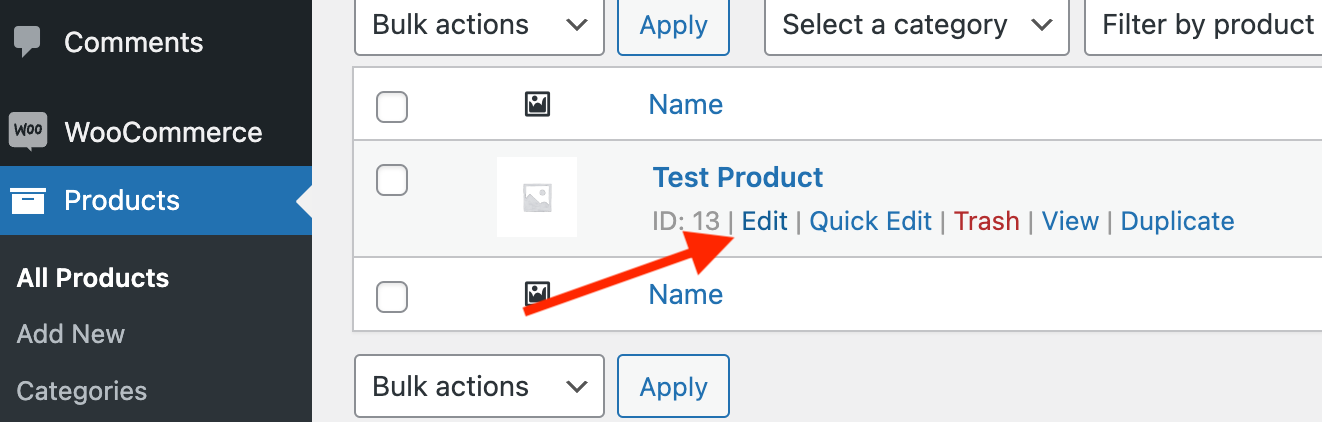
In your WordPress admin, go to Products and Edit the variable product.
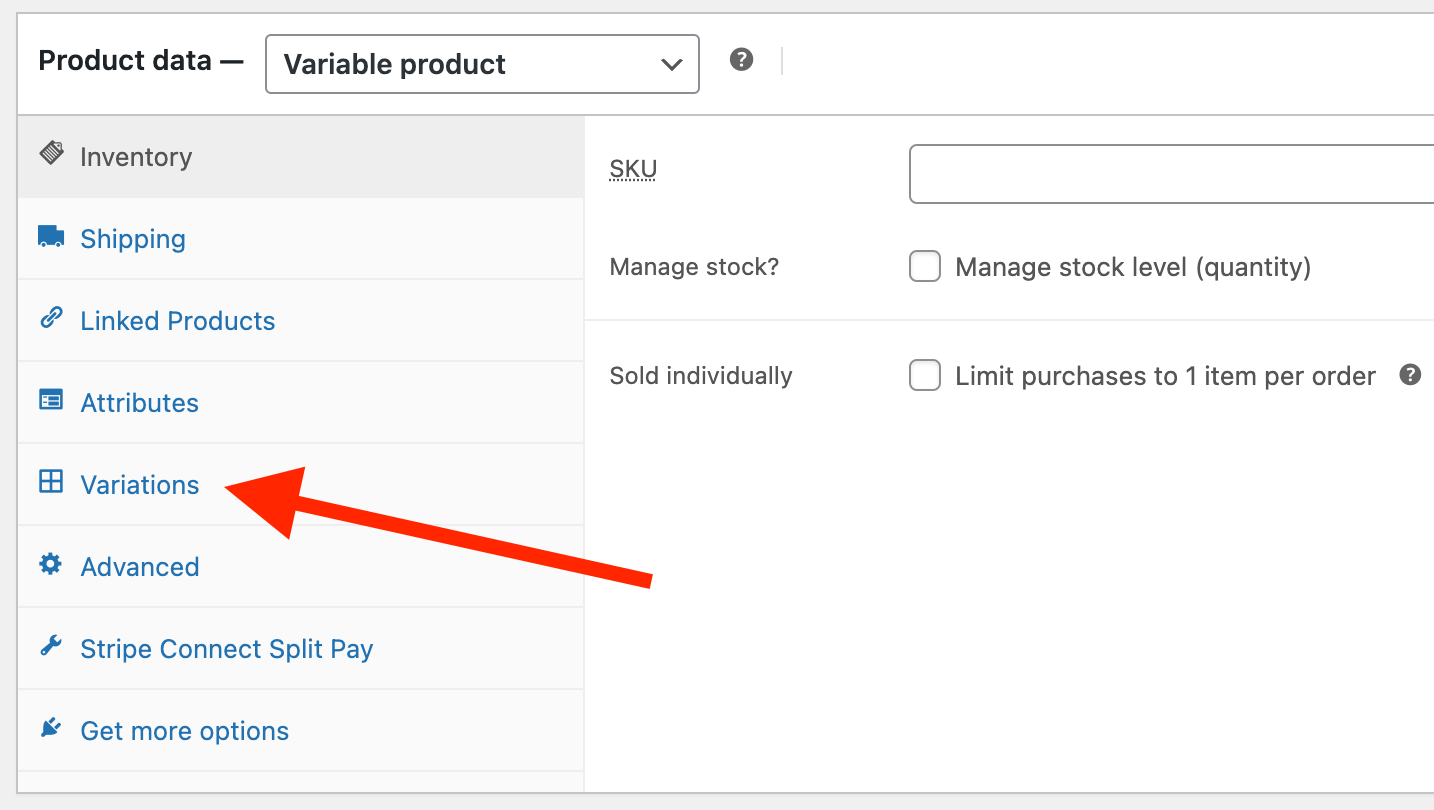
In the Product Data panel, click the Variations tab.
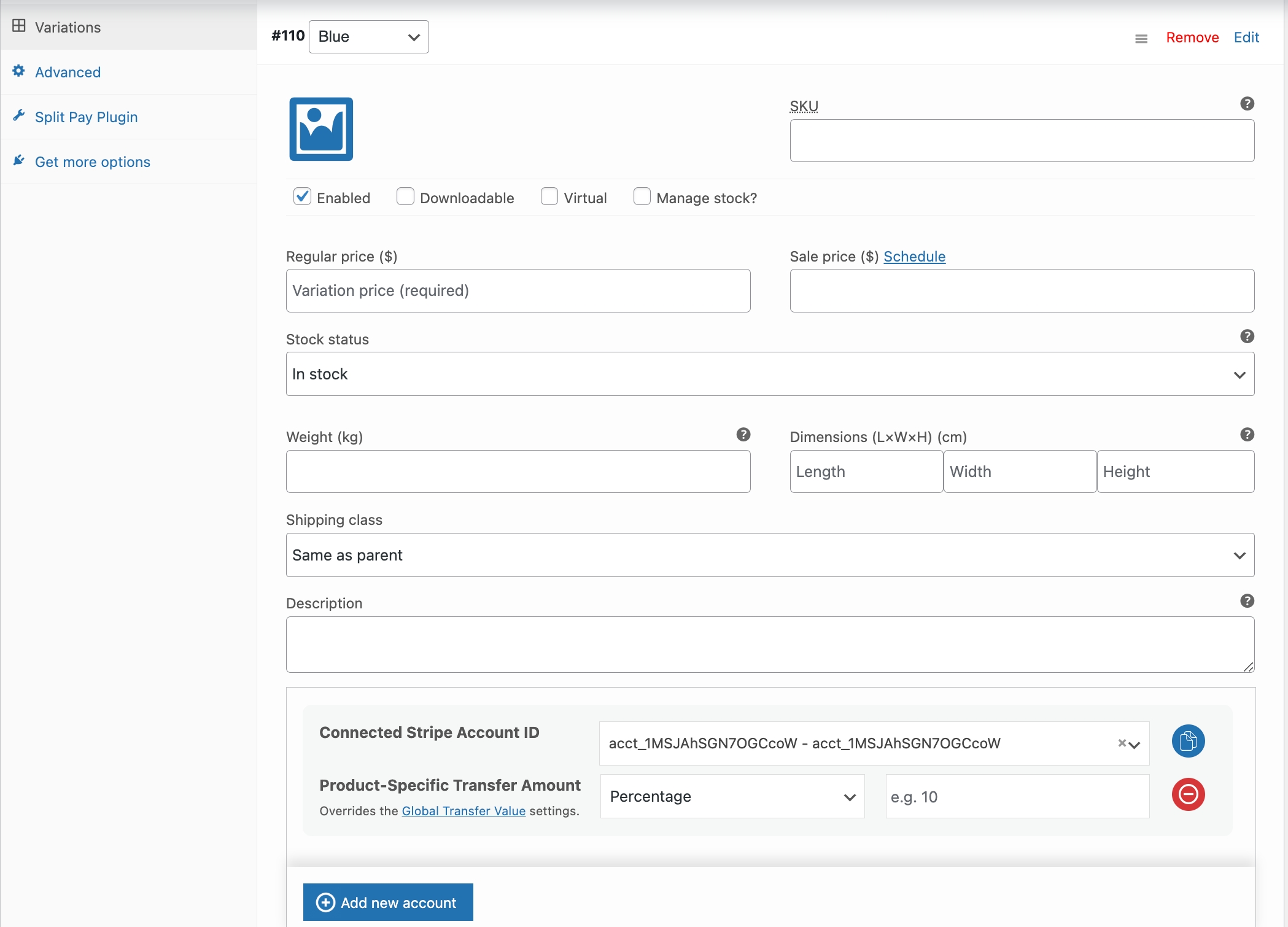
Expand the variation you want to configure by clicking on it.
Locate the Split Pay Plugin fields within the variation panel and choose the recipient from the connected-account list.
Select the Transfer Type (Percentage or Fixed Amount) and enter the Transfer Value.
Repeat for any other variations that need unique settings.
Click Save changes in the Variations panel, then Update the product.
Mixing transfer types across variations
Each variation is completely independent — you can use different transfer types on different variations of the same product:
| Variation | Price | Transfer Type | Transfer Value | Amount Transferred |
|---|---|---|---|---|
| Small | $20.00 | Percentage | 15% | $3.00 |
| Medium | $25.00 | Percentage | 15% | $3.75 |
| Large | $35.00 | Fixed Amount | $8.00 | $8.00 |
In this example, the Small and Medium variations use a percentage transfer, while the Large uses a fixed amount. This flexibility allows you to align each variation's transfer with its actual cost structure.
Fallback behavior
Understanding how variations inherit settings is key to avoiding surprises:
| Variation Setting | Product-level Setting | Global Setting | What Happens |
|---|---|---|---|
| Set | Any | Any | Variation setting is used |
| Not set | Set | Any | Product-level setting is used |
| Not set | Not set | Set | Global setting is used |
| Not set | Not set | Not set | No transfer occurs |
Practical scenarios
Scenario 1: different margins per variation
A candle shop sells candles in Small, Medium, and Large. The wax supplier charges proportionally more for larger candles. The store sets 20% for Small, 18% for Medium, and 15% for Large to maintain consistent profit margins across all sizes.
Scenario 2: fixed production costs
A print shop sells custom posters in different sizes. Each size has a specific production cost: $5 for A4, $8 for A3, and $12 for A2. Using fixed transfers per variation ensures the production partner always receives exactly what they're owed, regardless of the retail price.
Scenario 3: different vendors per variation
A clothing store sells a jacket available in Leather and Synthetic. The Leather variation is sourced from Vendor A and the Synthetic from Vendor B. Each variation points to a different connected Stripe account, routing payments to the correct supplier.
Tips
- Start with global, then refine. Set a global transfer first, then only configure product-level or variation-level overrides where needed. This keeps your setup manageable.
- Use the Bulk Editor if you need to update transfers across many variations. See Bulk Editor.
- Test with Stripe Test Mode before going live. See Testing for details on how to verify transfers are calculated correctly.