
Dokan Marketplace
Pay a per-product supplier vendor on top of Dokan — an independent Stripe Connect transfer to, say, a brewery wholesaling through a bottle-shop’s listing — alongside Dokan Stripe Express, without touching Dokan’s commissions. Requires Split Pay PRO.
Overview#
Dokan runs your marketplace: vendor sign-ups, vendor dashboards, your storefront, and the commission each vendor is owed. With Dokan Stripe Express, Dokan already pays each listing vendor their share at checkout using Stripe’s separate charges and transfers — the payment is captured on your platform account and Dokan transfers each vendor’s cut to their own Stripe account.
Split Pay adds one thing Dokan can’t do on its own: a second, independent transfer to a different vendor on the same sale — a Supplier Vendor. The classic case is wholesale: a bottle shop lists a brewery’s product, Dokan pays the bottle shop as normal, and Split Pay pays the brewery its wholesale cut — all from one payment, with your platform keeping the rest as its fee.
In one line: Dokan pays the vendor who lists the product; Split Pay pays an additional supplier vendor on the same product — a true three-way split — without changing anything in Dokan’s commission, sub-order, or payout system.
Dokan, Split Pay, and what the integration adds#
Each piece owns a different part of the sale. The integration is the glue that lets a single payment pay two vendors plus your platform.
| On its own | What it does | The catch |
|---|---|---|
| Dokan + Stripe Express | Runs the marketplace and pays each listing vendor their commission at checkout, vendor by vendor. | Pays exactly one vendor per product — the one who listed it. It has no concept of a second “supplier” behind that product. |
| Split Pay alone | Splits a Stripe payment and sends shares to any connected account you name. | Has no idea who your Dokan vendors are. You’d hand-attach the right Stripe account to every product yourself. |
| The integration (the glue) | Adds a Supplier Vendor to any product, resolves that Dokan vendor to their Stripe account, and transfers their cut on the same charge Dokan uses — logged, refundable, and never touching Dokan’s ledger. | The supported setup uses Split Pay PRO, Dokan, and Dokan Stripe Express, which creates the platform-held charge the supplier transfer needs. Any different checkout must be proven to create its charge on the same platform account. |
What the integration adds, concretely:
- A per-product Supplier Vendor. Pick a second Dokan vendor and a wholesale amount (fixed or percentage) on any product. That vendor is paid automatically on every sale of it.
- A genuine three-way split. The listing vendor is paid by Dokan, the supplier vendor by Split Pay, and your platform keeps the remainder — all from one payment.
- Connect once. If a vendor already connected through Dokan Stripe Express, Split Pay can reuse that same Stripe account, so suppliers don’t connect twice.
- Refund-aware. A matching line-item refund reverses the supplier leg by that line’s refunded fraction. An amount-only fallback uses the order-wide refund ratio.
- Hands-off coexistence. Split Pay never writes to Dokan’s commission table, sub-order system, or withdrawal queue. Dokan keeps paying the listing vendor as before.
Compatibility#
- Split Pay: PRO. The Dokan behaviour (supplier transfers, vendor onboarding, account adoption) is a premium feature. See Activating PRO.
- Dokan: Dokan core (Lite is enough for detection, vendor onboarding, and the dashboard CTA). The supported Supplier Vendor setup uses Dokan Pro with the Dokan Stripe Express module because that module creates the platform-held charge the supplier transfer draws from. Split Pay detects Dokan core, Dokan Pro, and Stripe Express separately and shows you which are present.
- Use Stripe Express instead of legacy Stripe Connect. Dokan’s legacy “Stripe Connect” module charges directly on the vendor’s account, so there is no platform charge for a supplier transfer to draw from. Split Pay blocks supplier transfers when it proves that legacy module is present without Stripe Express. The absence of that warning does not prove an unknown checkout is compatible; verify that its charge belongs to the same platform account.
- WooCommerce + Stripe gateway: WooCommerce with Stripe Express handling the checkout. Split Pay reads the charge created on your platform account and transfers from there. A restricted key must pass Split Pay’s current platform, account, charge, transfer, and reversal checks. See Stripe Connect Prerequisites.
- WordPress: 6.1 or later.
Setup#
Have Dokan and Stripe Express working first. Install and activate Dokan, set up the Dokan Stripe Express module, and confirm vendors can connect and get paid through it as normal. Make sure Stripe Connect is enabled on your platform account.
Install and activate Split Pay (PRO). You can install it before or after Dokan — Split Pay picks Dokan up automatically. Save the mode-matched Stripe platform key, use Refresh from Stripe in Connect Status, and confirm the exact platform and recipient; see Quick Start.
Open Split Pay → Integrations and find the Marketplace integrations section. A Dokan card appears with an Active badge and a chip for each detected layer — Dokan core, Dokan Pro, and Stripe Express. Each control and warning on the card carries a Learn more → link to the matching section of this page. The Back-fill vendor links and Re-check membership % buttons run WCFM-only actions, so they appear on the WCFM card and not on the Dokan card.
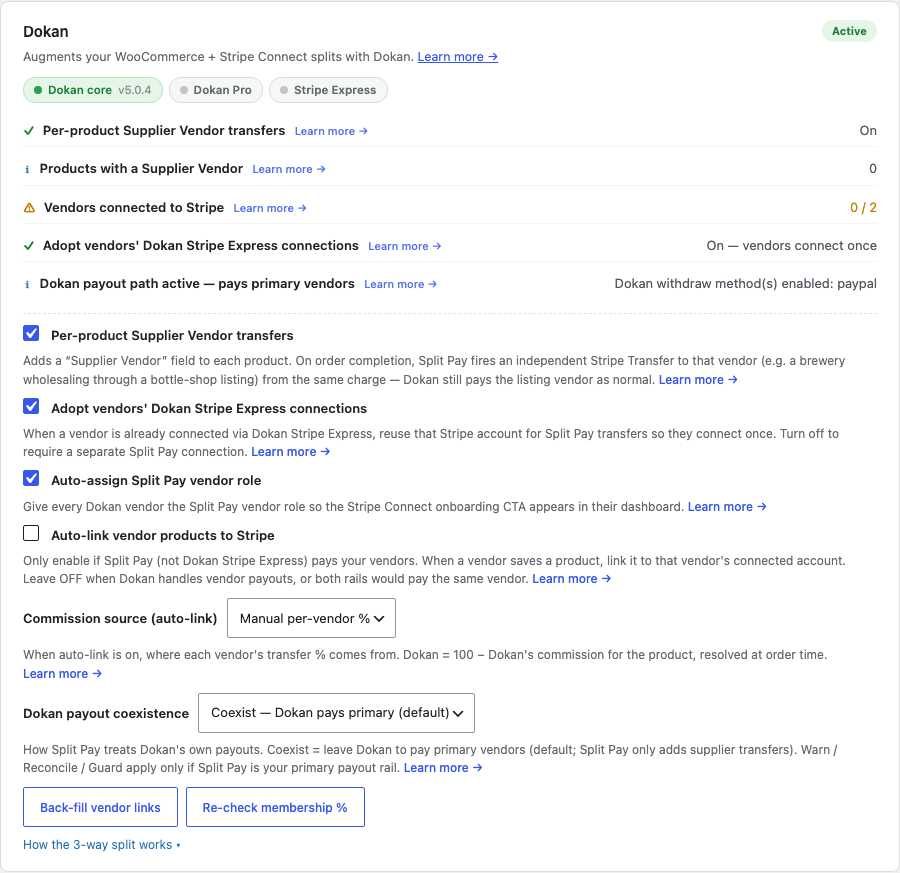
Turn on Enable the Dokan integration. This master switch is off by default. Until it is on, Split Pay changes nothing about your Dokan marketplace — no supplier transfers, vendor roles, adopted connections, or dashboard buttons. The other settings start where the supplier setup needs them: Per-product Supplier Vendor transfers, Adopt vendors’ Dokan Stripe Express connections, and Auto-assign Split Pay vendor role are on; Auto-link vendor products to Stripe is off; Commission source (auto-link) is Manual per-vendor %; and Dokan payout coexistence is Coexist.
Set up commissions so the math works. Because the supplier is paid from the same charge as the listing vendor, the three shares — listing vendor, supplier, and your platform fee — must fit inside one payment. In practice each product’s Dokan commission must be at least the supplier payment plus the platform fee you want to keep. Dokan pays the listing vendor the rest. Split Pay shows the product’s current Dokan commission right under the Supplier Vendor field so you can size the supplier amount against it.
Add a Supplier Vendor to a product and run a test sale. Set a supplier and amount on one product (below), connect that supplier in Stripe test mode, then buy the product. You should see Dokan’s transfer to the listing vendor and a separate Split Pay transfer to the supplier in your Stripe Dashboard (Connect → Transfers) and the Split Pay Transfers log.
Supplier Vendor transfers#
This is the headline of the Dokan integration. With Per-product Supplier Vendor transfers on, every product gains a Supplier Vendor field in its Split Pay tab:
- Supplier vendor — a dropdown of your Dokan vendors. Pick the vendor who should receive a second, independent payment when this product sells.
- Supplier payment — a fixed amount or a percentage of the line. This is what Split Pay transfers to the supplier on each sale.
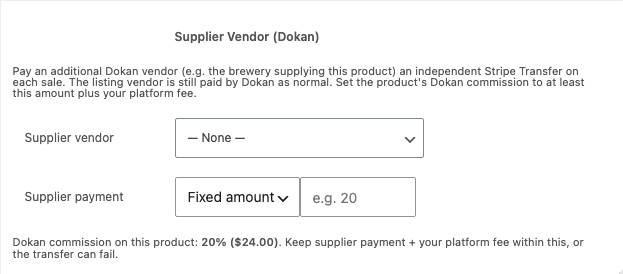
How a sale flows (the three-way split). On a paid order, Dokan transfers the listing vendor’s commission to their account as usual. Split Pay then fires a separate Stripe transfer to the supplier vendor for the amount you set, tied to the same charge, and logs the transfer id as an order note. Whatever remains on the charge after both transfers is your platform fee.
Refunds. A matching line-item refund reverses the supplier leg by that ordered line’s refunded fraction; refunding unrelated lines reverses none of that supplier leg. A full matching refund reverses its remaining amount. When the store supplies only an amount and no exact line mapping, Split Pay falls back to the logged supplier amount multiplied by refund amount / original order total.
Keep the supplier within the commission. If you set a supplier payment larger than the product’s Dokan commission, the supplier transfer can fail or leave nothing for your platform fee. Split Pay warns you when you save such a product; it does not change Dokan’s listing-vendor payment. Lower the supplier amount, or raise that product’s Dokan commission. A supplier set to the same vendor who lists the product is skipped — Dokan already pays that vendor.
Commission source#
The Commission source (auto-link) setting only matters if you turn on auto-link (below) and use Split Pay — rather than Dokan Stripe Express — as the rail that pays your listing vendors. It decides where each vendor’s transfer percentage comes from:
| Choose… | When you want… | How the split is decided |
|---|---|---|
| Manual per-vendor % | To set product splits yourself in Split Pay. | Your Split Pay per-product transfer values apply. While the Dokan integration is enabled, Split Pay suppresses global product transfers. |
| Dokan commission | Split Pay to pay each vendor what Dokan would have. | Each vendor is paid 100 − Dokan’s commission for the product, resolved at order time. |
If you use Dokan Stripe Express to pay listing vendors (the common setup), leave auto-link off and ignore this setting — it has no effect on supplier transfers, which always use the per-product amount you set.
Adopting Stripe connections#
A supplier can only be paid if Split Pay knows their Stripe account. The Adopt vendors’ Dokan Stripe Express connections setting (on by default) decides how that happens:
- On — when a supplier is already connected through Dokan Stripe Express, Split Pay reuses that same Stripe account. The vendor connects once and can be paid both as a listing vendor (by Dokan) and as a supplier (by Split Pay).
- Off — Split Pay ignores Dokan’s connection and requires the vendor to connect through Split Pay’s own onboarding (see Vendor onboarding). Use this if you want supplier payouts to land in a different Stripe account than the vendor’s Dokan sales.
Whichever you choose, Split Pay only ever uses an account connected in the same Stripe mode as the charge. A supplier connected only in live can’t be paid by a test-mode order, and vice versa — so when you test in a sandbox, connect your supplier vendors in test mode first.
Vendor onboarding#
A supplier who has never connected to Stripe — through Dokan or Split Pay — can’t be paid. With Auto-assign Split Pay vendor role on (default), every Dokan vendor gets a Stripe Payouts tab in their Dokan dashboard with a Connect with Stripe button, so they can connect through Split Pay directly.
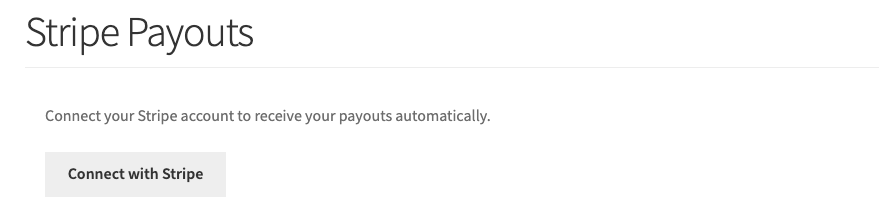
You can also onboard vendors yourself, or drop the platform-agnostic [split_pay_vendor_connect] shortcode on any page — both are covered in Connecting Vendor Stripe Accounts. The card’s Vendors connected to Stripe status check shows how many vendors still need to connect.
From the same Stripe Payouts tab, a connected vendor can Disconnect their Stripe account at any time. Split Pay then stops routing supplier transfers to it — and won’t silently re-adopt their Dokan Stripe Express connection — until the vendor reconnects.
Auto-linking products#
Auto-link is off by default for Dokan, on purpose. It attaches a vendor’s own products to that vendor’s Stripe account so Split Pay pays them — which only makes sense if Split Pay, not Dokan Stripe Express, is your primary payout rail. If Dokan already pays your vendors (the normal setup), leaving auto-link on would pay the same vendor twice — once by Dokan and once by Split Pay.
Turn it on only if you intend Split Pay to replace Dokan’s vendor payouts. Then also set Commission source and switch payout coexistence away from Coexist (see below). For the supplier-transfer use case, leave auto-link off.
When a vendor disconnects, Split Pay removes an auto-linked product route only if it still matches the signed ownership proof for that exact vendor and Stripe account. A manually configured route, or any route without matching proof, is left unchanged.
Avoiding double payouts#
Because Dokan paying the listing vendor is intended here, Split Pay’s default is to leave Dokan’s payouts alone. The Dokan payout coexistence setting controls this:
| Mode | What Split Pay does | Best when |
|---|---|---|
| Coexist (default) | Nothing. Dokan pays the listing vendor; Split Pay only adds supplier transfers. | The normal setup — Dokan Stripe Express pays vendors and you use Split Pay for suppliers. |
| Detect & warn | Watches Dokan’s payout path and flags it on the card, without changing anything. | You’ve turned on auto-link and want to review before letting Split Pay take over payouts. |
| Add reconciliation order note | Adds one Split Pay note to the WooCommerce order after a transfer. It does not change Dokan’s balance or commission-paid state and does not stop a Dokan payout. | You want an order-level audit note only. |
| Neutralize Dokan payouts (Guard) | Vetoes Dokan Stripe Express auto-disbursement for orders covered while Guard is active. It does not disable other withdrawal methods or reclaim an order already queued for delayed disbursement. | Split Pay is your primary rail, you use Dokan Stripe Express, and you have separately disabled any other Dokan payout paths. |
For the supplier-vendor use case, Coexist is correct — both rails are meant to run. The other modes only matter if you switch to Split Pay as the primary payout rail via auto-link.
Recommended setups for common goals#
| Your goal | Supplier transfers | Auto-link | Coexistence |
|---|---|---|---|
| “Dokan pays my vendors; I just need to pay a supplier behind some products.” | On | Off | Coexist |
| “Suppliers should connect Stripe only once.” | On | Off | Coexist — leave Adopt Dokan connections on. |
| “I want Split Pay, not Dokan, to pay my vendors.” | On or off | On | Neutralize Dokan payouts (Guard) — set Commission source (auto-link), disable other Dokan payout paths, and enable this mode before accepting covered orders. |
Limitations and known issues#
- PRO only. Supplier transfers, onboarding, and account adoption require Split Pay PRO. On the free version the Dokan card still detects Dokan, but the automation does not run.
- Needs a platform-held charge. The supported setup uses Dokan Stripe Express. Split Pay blocks the proven legacy “Stripe Connect”-without-Express combination; any other checkout must be verified to create its charge on the same platform account.
- The supplier must connect Stripe in the charge’s mode. A sale can only transfer to a supplier who has a connected account in the same mode (test or live). Connect suppliers in test mode before sandbox testing.
- Keep the supplier within the Dokan commission. The supplier plus your platform fee can’t exceed the product’s Dokan commission; Split Pay warns you at save time.
- Supplier is set per product. On a variable product, set the Supplier Vendor once on the parent product; it applies to every variation.
- Async payment methods. Split Pay waits for the Stripe charge to be successful, captured, and unrefunded before creating the supplier transfer. A delayed bank-debit order therefore transfers only after settlement is confirmed.
Troubleshooting#
- No Dokan card on the Integrations tab. Confirm Dokan is installed and active, and that Split Pay is up to date.
- The card shows supplier transfers On, but products have no Supplier Vendor field. Turn on Enable the Dokan integration. The Per-product Supplier Vendor transfers check reflects that setting alone; nothing runs until the master switch is on.
- The card says supplier transfers are unavailable. You’re on the legacy Dokan “Stripe Connect” module. Switch to Dokan Stripe Express — supplier transfers need the platform-held charge it creates.
- A supplier wasn’t paid on a sale. Check the Vendors connected to Stripe count — the supplier likely hasn’t connected in the order’s Stripe mode. Connect them, then re-test. Confirm the product’s Supplier Vendor and amount are set.
- The supplier transfer failed or left no platform fee. The supplier payment exceeded the safe headroom represented by the product’s Dokan commission. Lower the supplier amount or raise that product’s Dokan commission. Split Pay does not change Dokan’s listing-vendor payment.
- A supplier got paid but shouldn’t have (or twice). Confirm the Supplier Vendor isn’t the same vendor who lists the product — that case is skipped by design; if you see a double payment, check whether auto-link is also on.
- A test sale created no supplier transfer. In Connect Status, confirm the Test platform identity and that the supplier account is ready in Test mode. Then confirm Dokan Stripe Express created a successful platform charge and the product has a supplier rule. Split Pay transfers are order-driven and do not require
transfer.*webhook events.