
Integrations tab
Save your Stripe platform secret key, review the Stripe gateways Split Pay detects, add a gateway-specific transfer key where required, and open Connect Status to verify recipients.
Overview#
The Integrations tab is the central place to connect Split Pay to your Stripe platform account and review the e-commerce platforms and gateways detected on your site. It lives under the top-level Split Pay menu in WordPress admin.
Split Pay groups each supported e-commerce platform with its gateways and shows the detected state:
- Active — the platform or gateway is detected and active. This badge alone does not prove its key or recipients are ready.
- Inactive — the plugin is installed but not currently activated.
- Not found — the plugin is not installed on this site.
Where to find it#
In the WordPress admin sidebar, click Split Pay, then click Integrations. Platform Status is the default landing tab; see Platform Status tab for what it shows. The other tabs are Connect Status, Global Transfer Settings, Transfers, Bulk Editor, Vendor Onboarding, and Advanced.
You can also go directly to:/wp-admin/admin.php?page=bsd-split-pay-stripe-connect-woo-settings&tab=integrations
Advanced, the last tab, holds the rarely used settings: Advanced transfer options (sequential global splits, Stripe-fee allocation, and WCFM identity-bound Connect links), Fee routing, Field-value routing, and Reset / reconnect Split Pay accounts. Click the tab’s Save Changes button after you change a setting there. The reset runs as soon as you confirm it and doesn’t need Save Changes.

Supported platforms and gateways#
Split Pay has two first-class e-commerce integrations and three named Stripe gateway entries:
| Platform | Supported Stripe gateway | Notes |
|---|---|---|
| WooCommerce | WooCommerce Stripe Payment Gateway (official) | The original Split Pay path. Most documentation examples on this site use this stack. |
| WooCommerce | Payment Plugins for Stripe WooCommerce (woo-stripe-payment) |
Save its mode-matched platform key under Advanced for an explicit, fully ready setup. Split Pay prefers that key for normal order transfers, delayed releases, guarded retries, and store-initiated refunds, and requires it for this row’s readiness, account sync, and check. If it is empty, those normal paths can fall back to Payment Plugins’ own same-mode secret key, but the row remains incomplete. See Payment Plugins for Stripe WooCommerce. |
| FluentCart | FluentCart built-in Stripe | Lets you split FluentCart orders without WooCommerce installed. See FluentCart. |
For another Stripe-backed WooCommerce gateway, Split Pay’s universal adapter can use the main platform key only when it can resolve the order’s original Stripe charge in that same platform account. It does not handle non-Stripe gateways or WooPayments. Prove any universal-adapter setup with a Test order before using Live mode.
You only need one of these stacks active to use Split Pay. If more than one is active, Split Pay routes each order through whichever gateway processed it.
Developers can register additional integrations with the spp_register_integrations action and spp_integrations filter. See Developer Filters.
Readiness summary#
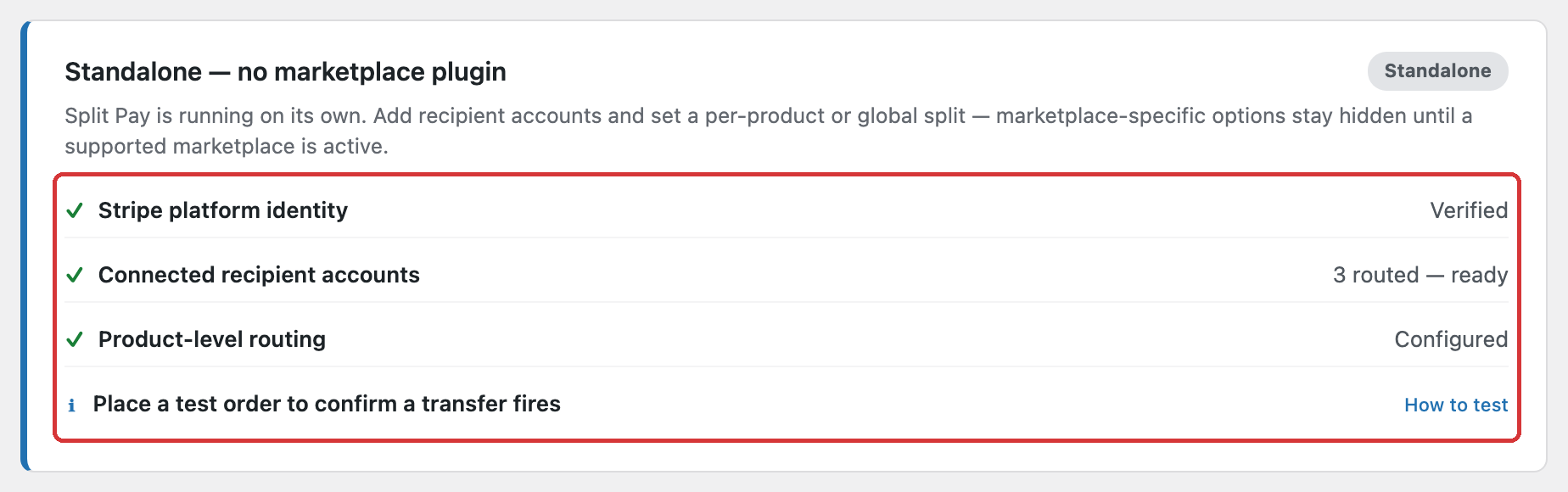
The first card summarizes the selected mode without replacing the detailed Connect Status screen:
- Whether the Stripe platform identity has been verified.
- How many routed recipients were found and whether they are ready.
- Whether product-level routing is configured.
- A reminder to place a test order before accepting live payments.
Platform key and gateway rows#
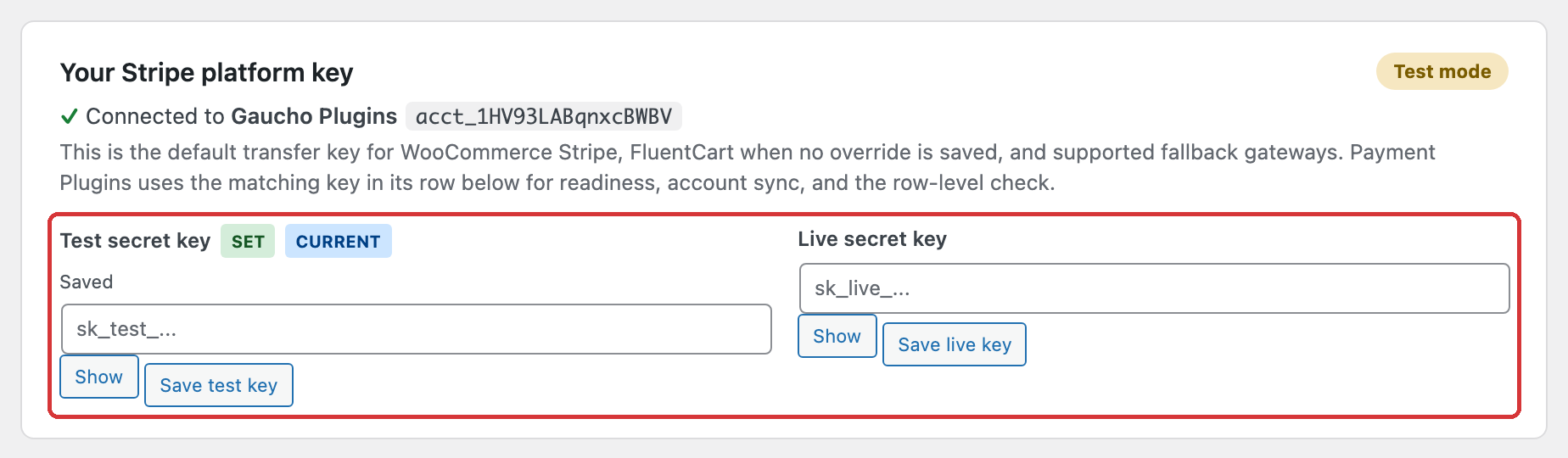
Your Stripe platform key has separate Test and Live secret-key fields. Save the mode or modes your store uses; you do not enter a publishable key in Split Pay. For normal order transfers, delayed releases, guarded retries, and store-initiated refunds, official WooCommerce Stripe prefers the saved Split Pay main/legacy key and can fall back to that gateway’s own same-mode payment key when those fields are empty; its readiness, account sync, and row-level check use the Split Pay main/legacy path only. An unmatched universal WooCommerce adapter can use the only available platform key when a stale inactive gateway setting points at the other mode; the selected key’s prefix determines effective mode. FluentCart uses its Advanced override first and otherwise uses the detected same-mode chain for its normal transfer path.
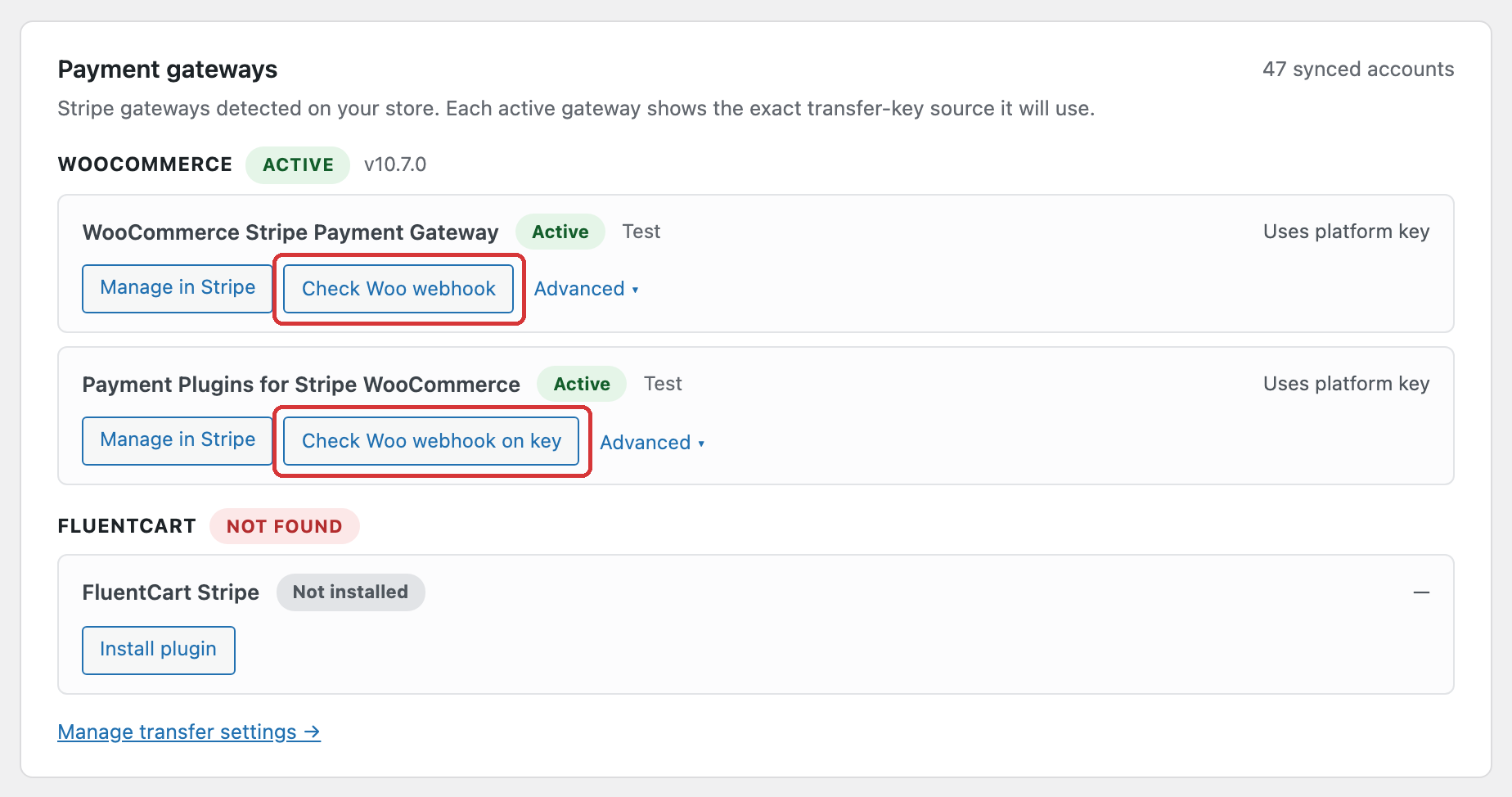
The Payment gateways card groups each detected platform and gateway. Each gateway row shows:
- Whether it is active and whether it is using Test or Live mode.
- Whether it uses the main platform key or has its own transfer key.
- Manage in Stripe and a narrow, read-only Check Woo webhook or Check Woo webhook on key diagnostic.
- Advanced controls for account syncing and gateway-specific transfer keys where available.
Payment Plugins has two key paths. Normal order transfers, delayed releases, guarded retries, and store-initiated refunds prefer its Split Pay Advanced key and can fall back to Payment Plugins’ own same-mode secret key when Advanced is empty. Readiness, account sync, and Check Woo webhook on key are stricter and use only the Advanced key. Save Advanced instead of relying on the compatibility fallback, and do not assume that fallback covers every asynchronous failure, dispute, or recovery handler. FluentCart’s normal transfer path uses its Advanced override first, then Split Pay’s detected same-mode platform-key chain; its row-level check remains Advanced-only.
Keep unfinished orders in their original Stripe mode and platform account. Named gateway adapters read their current Test/Live setting for delayed releases, guarded retries, and store-initiated refunds. An unmatched universal adapter can use the only available platform key, with its prefix determining effective mode. Verify the original Stripe object in the selected account before acting; Split Pay stops when that check fails.
Setting up a gateway#
Follow this setup once for the Stripe mode your store uses:
Connect your store’s Stripe gateway plugin to the Stripe platform account that receives the customer charges.
Under Your Stripe platform key, paste that platform account’s Test or Live secret key and save it.
If you use Payment Plugins for Stripe WooCommerce, open its Advanced section and save the same platform account’s mode-matched secret key there. That removes fallback ambiguity and enables this row’s readiness, account sync, and webhook check. For FluentCart, save an Advanced override when it settles into a different Stripe platform account or when you need to make its platform source explicit.
Optionally click Check Woo webhook on the official WooCommerce Stripe row or Check Woo webhook on key on another row. Using that row’s key, this read-only action checks up to 20 endpoint records and reports exact matches for this site’s official WooCommerce Stripe webhook URL that Stripe does not mark disabled. It does not create, edit, or delete an endpoint, and it is not a transfer-readiness check.
Open Connect Status, click Refresh from Stripe, and confirm that every routed recipient is ready in the same mode as the store.
Test and Live are separate. A Test key and Test connected account cannot be used for a Live order, and a Live key and Live connected account cannot be used for a Test order. Configure and verify each mode you use.
Connect Status is the account source of truth#
The Integrations tab shows a short readiness summary. Use Connect Status for the detailed Test/Live recipient table, exact account IDs, onboarding links, account-pair confirmations, and the explicit Refresh from Stripe action. Keeping one detailed table prevents the same account from appearing ready in one place and unready in another.

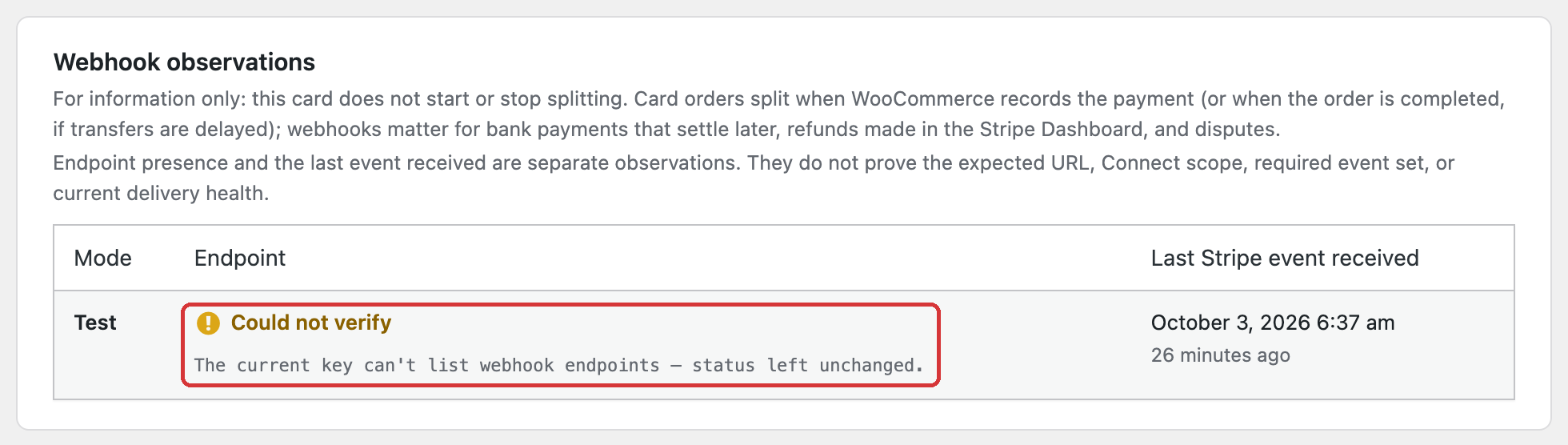
The Webhook observations card on Connect Status is for information only — it does not start or stop splitting. Card orders split when WooCommerce records the payment, or when the order is completed if transfers are delayed. Webhooks matter for bank payments that settle later, refunds made in the Stripe Dashboard, and disputes. If the card shows No endpoint record found, review the gateway row on the Integrations tab, then use its webhook check.
A mode that has adopted strict recipient identity verifies that every usable key for that mode belongs to one Stripe platform before refresh or reset changes the account cache. A failed or conflicting preflight leaves that cache unchanged. Legacy modes retain their existing key precedence until strict semantics are adopted. A completed refresh ignores rejected onboarding attempts and prefers Stripe’s Dashboard display name when available; manually adding an account requires a complete same-mode Stripe account catalog check before the row is saved.
Disabling an integration#
Split Pay uses an integration whenever its platform and gateway are detected as active. To stop new orders from that source from reaching Split Pay, deactivate that gateway or platform plugin. Clearing the main platform key removes transfer access for every gateway that uses it; it is not a per-gateway off switch. Existing transfer records remain.
Platform Status tab#
Platform Status is the tab Split Pay opens on. Besides the connection summary, it explains at the bottom what Split Pay does on its own and gives you a read-only data check. Two warning cards appear at the top only when they apply.
Connection status#
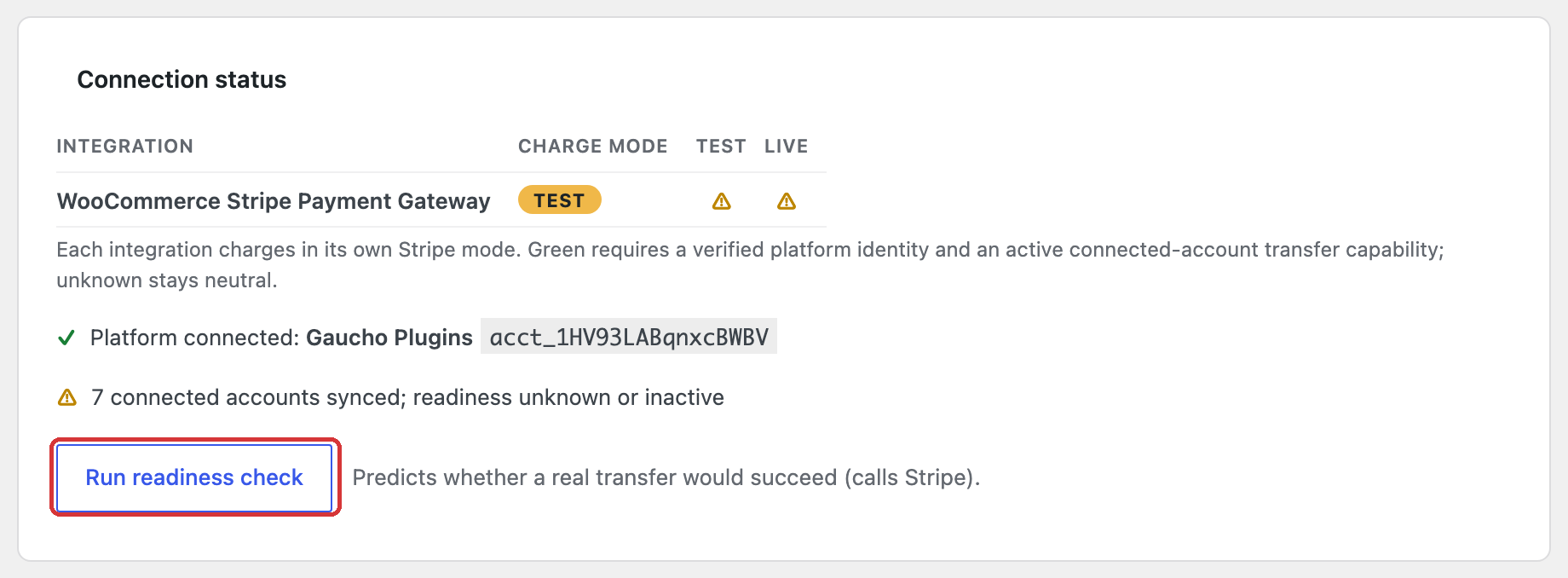
The Connection status card lists each active integration with the Stripe mode it charges in, TEST or LIVE, and a Test and a Live indicator. An indicator is a green check only when your platform identity is verified and a connected account’s transfer capability is active in that mode; otherwise it is a warning sign. Below the table, Platform connected names your Stripe platform account and its acct_ ID, and the next line counts the routed recipients that are ready, or the synced connected accounts whose readiness is unknown or inactive.
Run readiness check reads from Stripe to predict whether a real transfer would succeed. It sends no money.
Payment method compatibility#
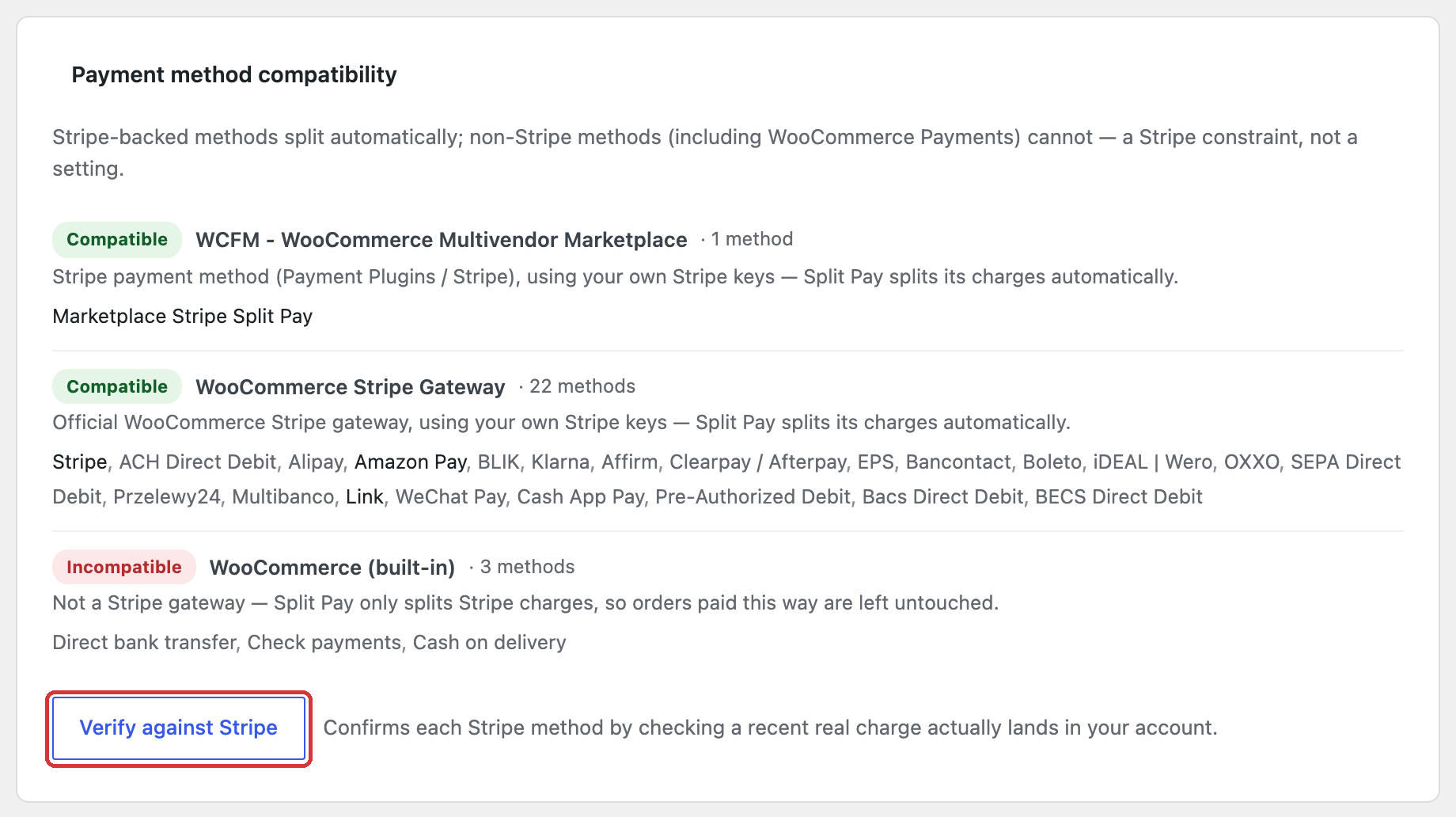
This card lists the payment methods each gateway on your store offers. A Stripe-backed gateway is Compatible: Split Pay splits its charges automatically. A gateway that isn’t Stripe — for example WooCommerce’s built-in bank transfer, check and cash on delivery methods, or WooCommerce Payments — is Incompatible, and Split Pay leaves orders paid with it untouched. Verify against Stripe confirms each Stripe method by checking that a recent real charge landed in your Stripe account. See Supported payment methods.
Universal Stripe system#
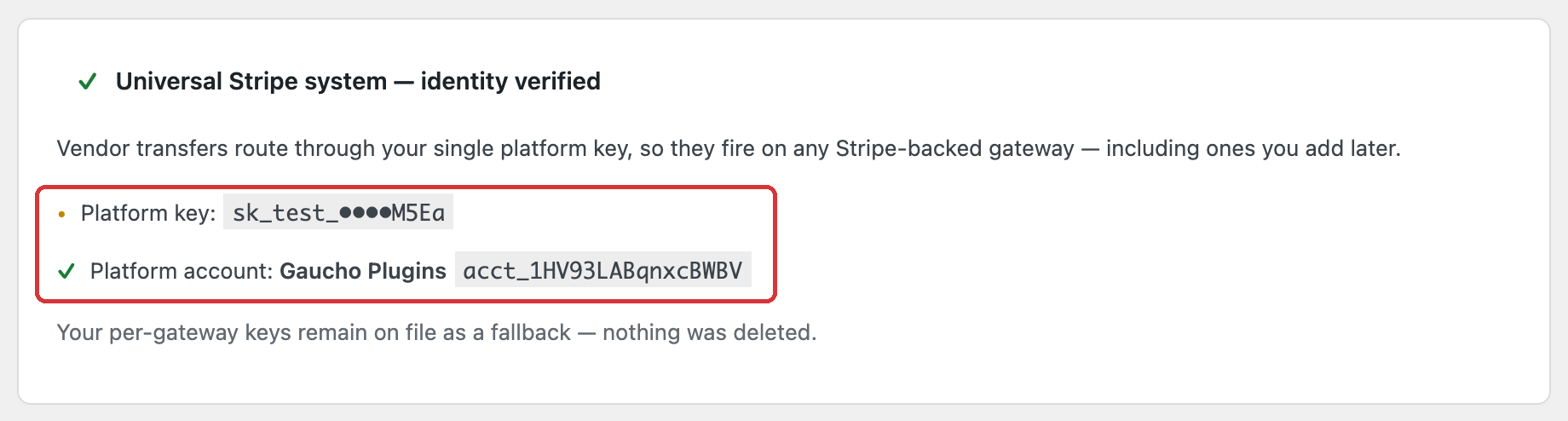
With the Universal Stripe system, vendor transfers go through your single platform key, so they run on any Stripe-backed gateway, including ones you add later. Until you switch, this card offers Switch to the universal key; switching is optional, and your per-gateway keys stay on file as a fallback. After you switch, the card shows the masked platform key and the platform account it belongs to.
What Split Pay does automatically#
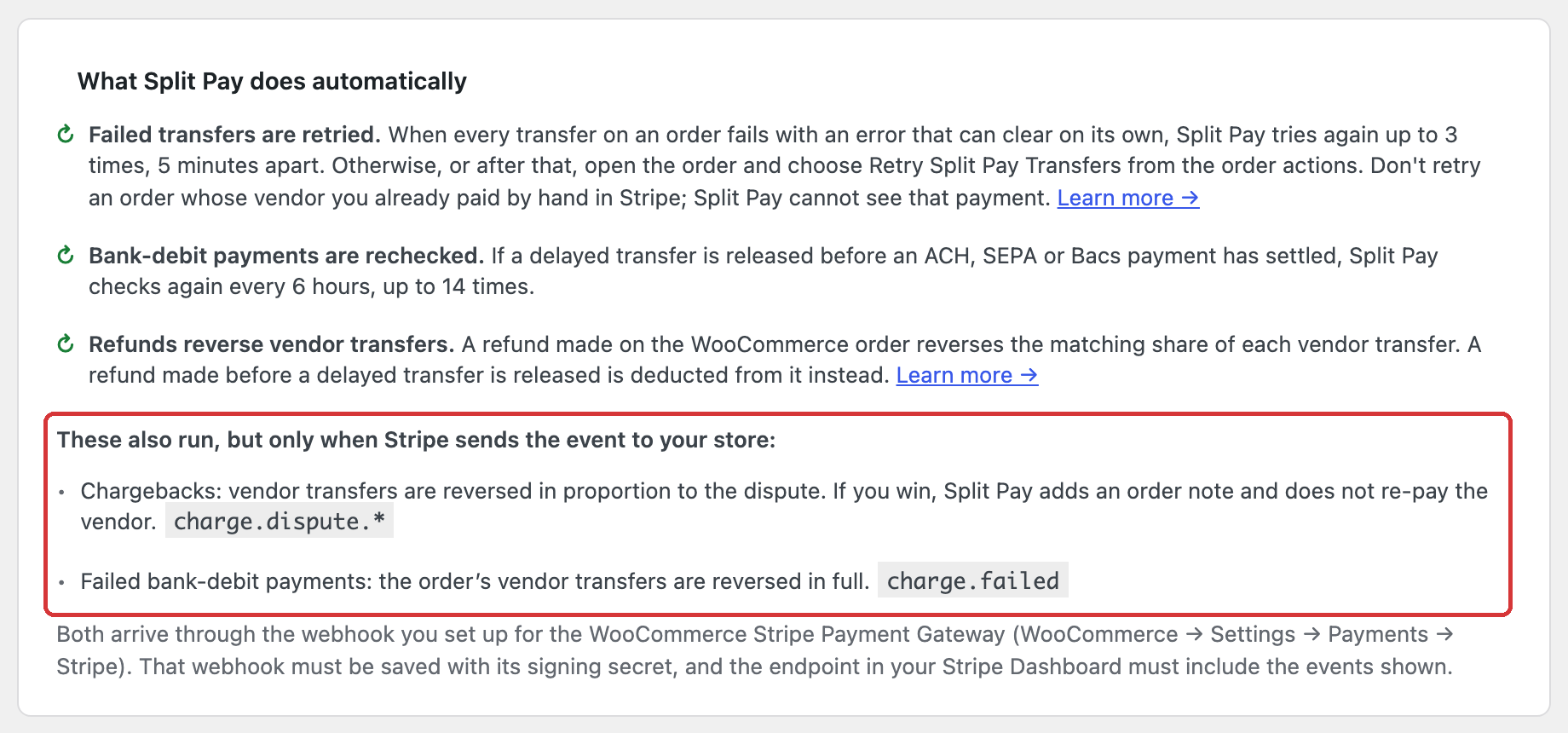
This card lists what runs without you clicking anything:
- Failed transfers are retried. When every transfer on a WooCommerce order fails with an error that can clear on its own, Split Pay tries again up to 3 times, 5 minutes apart. Otherwise, or after those tries, open the order and choose Retry Split Pay Transfers from the order actions. Don’t retry an order whose vendor you already paid by hand in Stripe — Split Pay cannot see that payment. See Retry failed transfers.
- Bank-debit payments are rechecked. If a delayed transfer PRO is released before an ACH, SEPA, or Bacs payment has settled, Split Pay checks again every 6 hours, up to 14 times.
- Refunds reverse vendor transfers. A refund made on the WooCommerce order reverses the matching share of each vendor transfer. A refund made before a delayed transfer is released is deducted from that transfer instead. Exception: with Stripe fee allocation to vendors on, a refund that reaches Stripe before release — including WooCommerce’s Refund via Stripe button — stops that order’s transfers, and you pay its vendors by hand in Stripe. The same applies to an order using Sequential global splits that is refunded after its split plan was saved. See Refund handling.
Two more run only when Stripe sends the event to your store:
- Chargebacks (
charge.dispute.*) — Split Pay reverses vendor transfers in proportion to the dispute. If you win the dispute, Split Pay adds an order note and does not re-pay the vendor. See Chargebacks. - Failed bank-debit payments (
charge.failed) — Split Pay reverses the order’s vendor transfers in full.
Both arrive through the webhook you set up for the WooCommerce Stripe Payment Gateway under WooCommerce → Settings → Payments → Stripe. Save that webhook with its signing secret, and make sure the endpoint in your Stripe Dashboard includes the events above. Without the signing secret, Split Pay ignores these events.
Split Pay checks each event against the one signing secret saved in the WooCommerce Stripe settings for the gateway’s current Test or Live mode, and ignores an event signed with any other secret. If the WooCommerce Stripe Payment Gateway isn’t active — for example, your WooCommerce store takes payments only through Payment Plugins for Stripe WooCommerce — Split Pay does not act on these events, so reverse vendor transfers for chargebacks and failed bank debits yourself in Stripe. FluentCart orders are different: Split Pay reverses their chargebacks through FluentCart’s own Stripe webhook (see FluentCart chargeback reversal), but does not reverse their transfers for failed bank debits.
Diagnostics and help#
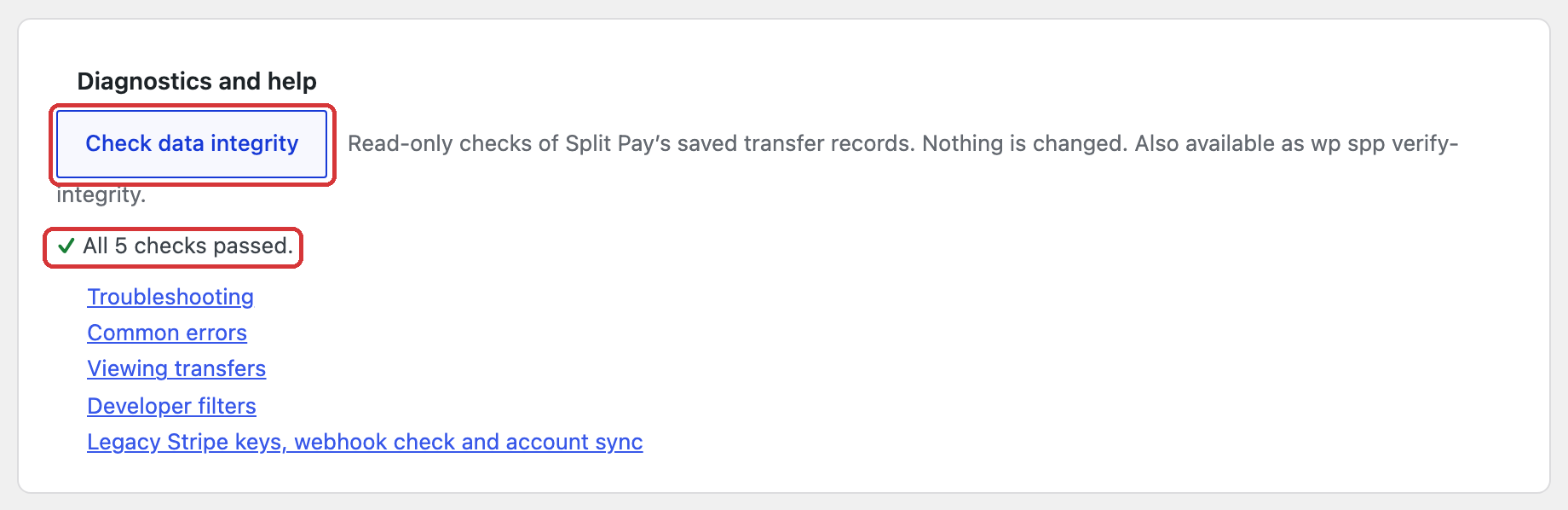
The Check data integrity button runs read-only checks of Split Pay’s saved transfer records and changes nothing. See Check Split Pay’s saved records for what each result means. The card also links to related documentation and to the legacy Stripe keys, webhook check, and account sync screen.
PRO license not active#
In PRO, if the license is not active while any of these PRO settings is still turned on, Platform Status shows Your Split Pay PRO licence is not active. It lists only the settings you turned on, and what stops for each:
- Delay transfers until the order is Completed — new orders are paid out as soon as payment succeeds.
- Sequential global splits — off for new orders.
- Stripe fee allocation to vendors — off for new orders.
- WCFM integration — off. Membership commission rates aren’t applied, so products use their own saved percentage; orders paid through WCFM’s own payout gateways aren’t skipped; and vendor roles and product auto-linking stop.
- Dokan integration — off.
- Vendor onboarding from wp-admin and Vendor Automation — off.
The card also notes that Split Pay settings on products cannot be saved while the license is inactive; the saved settings are kept. These settings apply again once the license is active. Click Check your licence to review it. The Free version never shows this card.
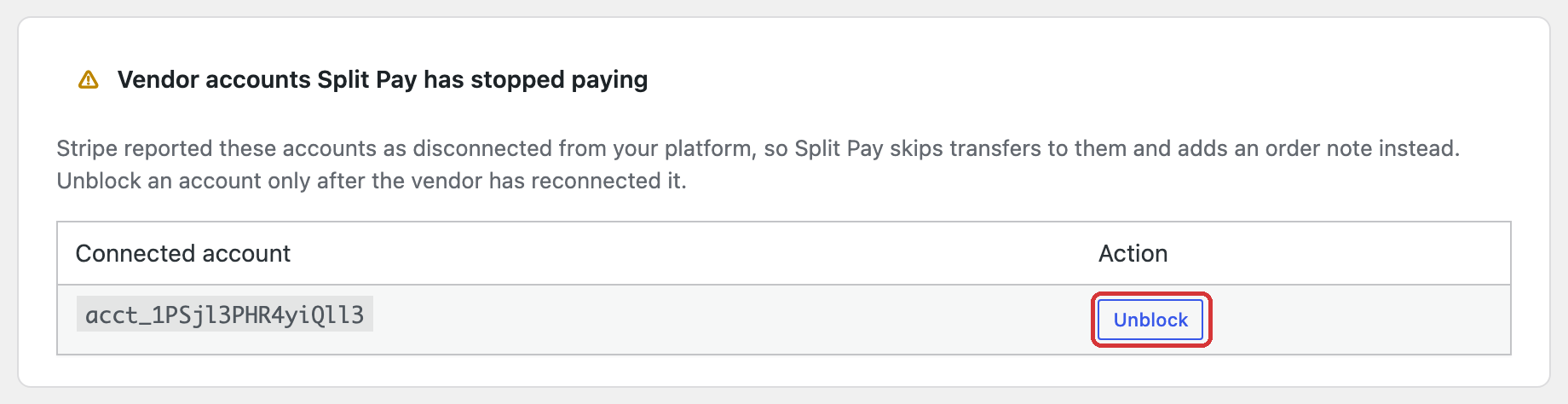
Vendor accounts Split Pay has stopped paying#
This card appears when Stripe has reported a connected account as disconnected from your platform. Split Pay skips transfers to those accounts until they are unblocked. See Accounts Split Pay has stopped paying.
Troubleshooting#
- If a platform shows Not found, confirm its WordPress plugin is installed and active on this site.
- If a gateway shows Transfer key not set, save the intended mode’s key in the field named by that row. For Payment Plugins, save its mode-matched platform key under Advanced; a successful charge or transfer fallback does not make readiness, account sync, or the row-level check ready.
- If Check Woo webhook or Check Woo webhook on key reports that it cannot verify the endpoint, confirm that the gateway row has the intended key and that the key can list webhook endpoints. The check leaves Stripe unchanged.
- If recipients are missing or unready, open Connect Status and click Refresh from Stripe. Do not rely on an email address or display name instead of the exact account ID and mode.