
Vendor Payment QR Codes PRO
Give every connected vendor a personal QR code that links straight to their payment product — scan, land, pay.
PRO feature, off by default. Enable it under Split Pay settings → Vendor Onboarding → Vendor Automation → Give each vendor a payment QR code. It works together with Automatic Vendor Products, which provides the product URL the QR encodes.
Each connected vendor gets a personal QR code that links to their payment product. A customer scans it with their phone camera, lands on the vendor's product page, and pays — that's the whole flow.
Where vendors see their QR code
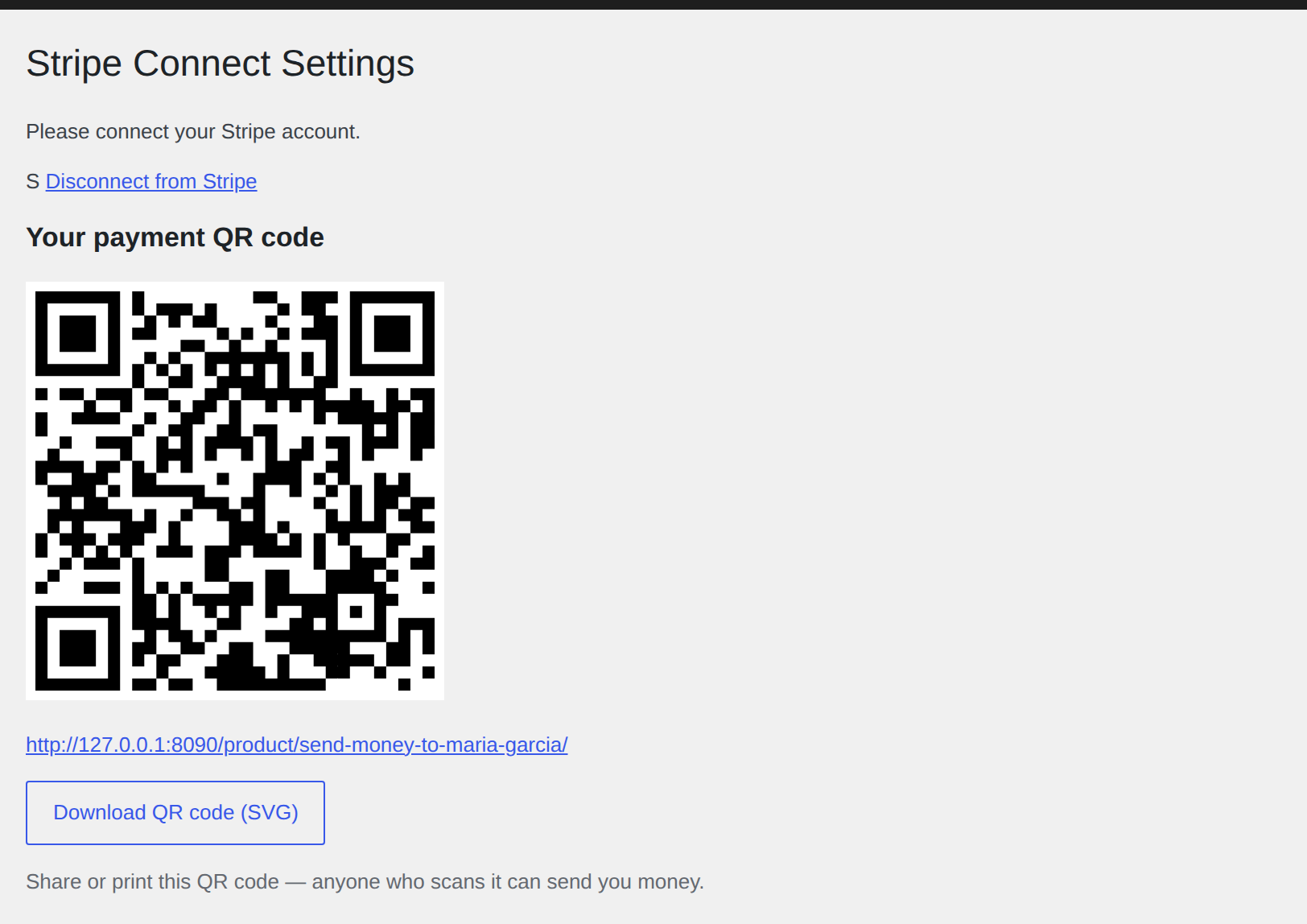
Once a vendor's Stripe account is connected and their product exists, the QR code appears automatically in three places:
- The vendor dashboard — the Stripe Connect page vendors see in wp-admin, below the Connect/Disconnect button.
- The
[split_pay_vendor_connect]shortcode — shown in the "connected" state after onboarding completes. - Anywhere you place the
[split_pay_vendor_qr]shortcode — for example on a front-end profile page (Ultimate Member tab, BuddyPress profile, or any page vendors can reach).
Vendors can also click Download QR code (SVG) to save a scalable vector file that prints crisply at any size — table tents, stickers, posters.
The [split_pay_vendor_qr] shortcode
[split_pay_vendor_qr]Optional attributes:
| Attribute | Default | Purpose |
|---|---|---|
login_label | "Please log in to view your QR code." | Shown to logged-out visitors. |
pending_label | "Your QR code will appear here once your Stripe account is connected." | Shown to logged-in users who haven't completed onboarding yet. |
Privacy by design: the shortcode only ever shows the logged-in user their own QR code. There is no attribute to display another user's code.
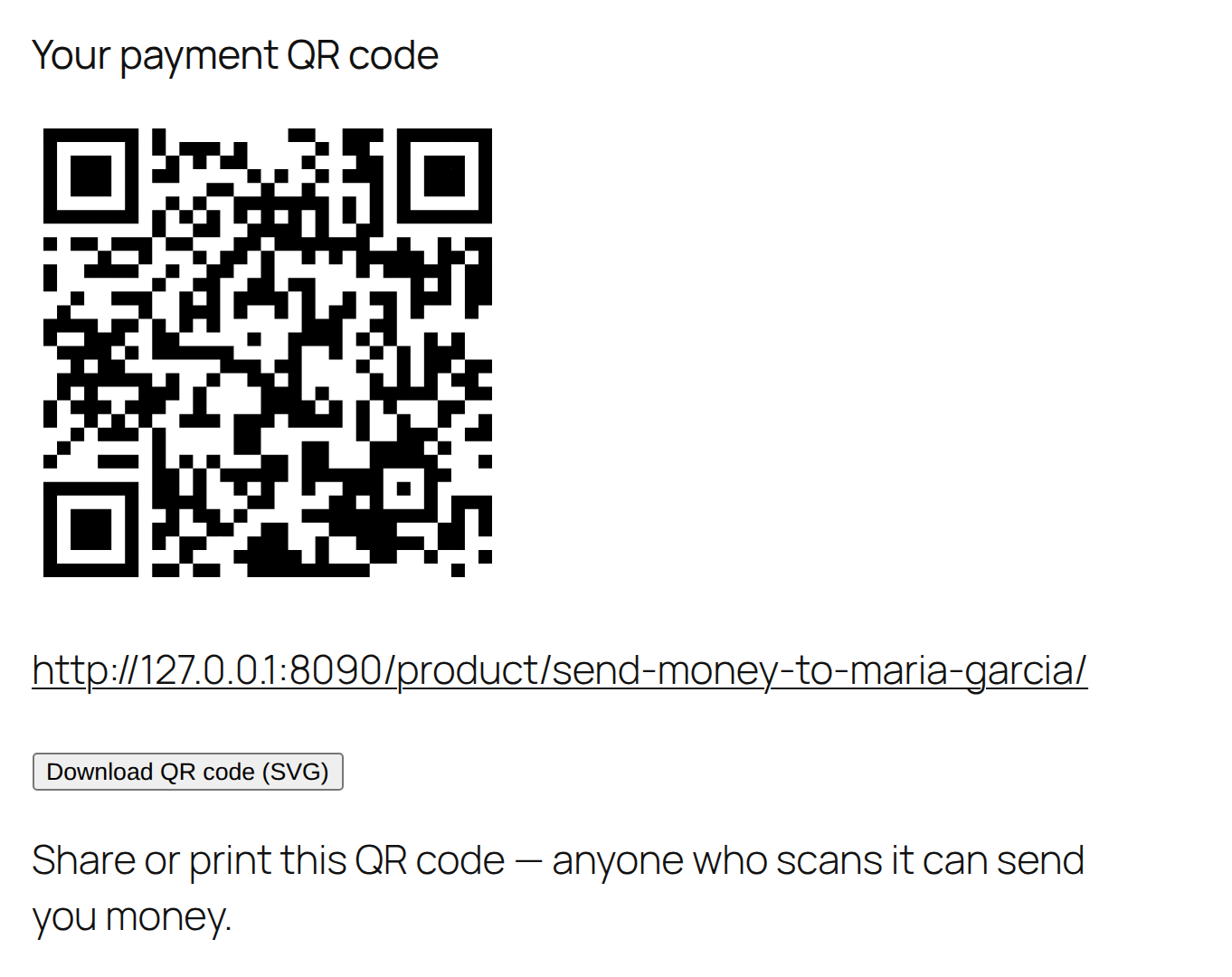
[split_pay_vendor_qr] shortcode on a front-end page — QR code, payment link, and SVG download.How the QR codes are generated
QR codes are rendered in the browser as SVG using a bundled, MIT-licensed generator library:
- No external QR/image service is contacted — the URL never leaves your site.
- No PHP image extensions (GD/Imagick) are required.
- The code always reflects the product's current permalink. If your site switches between Stripe test and live mode, the QR automatically points at the product for the active mode.
Troubleshooting
- The QR area is empty — the vendor's product doesn't exist yet (enable Automatic Vendor Products and have the vendor complete onboarding) or the product is unpublished (e.g. after a disconnect with "Unpublish the product" selected).
- Scanning leads to a draft/404 page — the vendor disconnected and your disconnect behavior is set to unpublish. The product republishes when they reconnect.