
Common Errors
Find the fix for the error you’re seeing — the recurring ones with their causes and step-by-step solutions.
Each section pairs an exact error message with the shortest verified fix. Use your browser’s find (Cmd/Ctrl + F) to jump to the message you see.
Stripe Connect account sync error#
You may see this error after clicking Refresh from Stripe in Connect Status:
"You cannot access the connected accounts of your Platform's connected accounts."
Cause
You’ve pasted API keys from a connected account instead of your Stripe Platform account. Split Pay needs the Platform account’s keys because that account is the one processing transactions and initiating transfers.
Solution
Make sure your API keys come from your Stripe Platform account — not from one of the connected accounts that receive transfers.
After saving the platform key in Split Pay, open Connect Status and verify the exact platform account ID in the current mode.
How to identify your platform account
Your Stripe Platform account is the main account that:
- Is connected to whichever Stripe gateway adapter your store is using — the official WooCommerce Stripe Payment Gateway, Payment Plugins for Stripe WooCommerce (
woo-stripe-payment), or FluentCart’s built-in Stripe module. - Processes customer payments at checkout.
- Has connected accounts listed under Connect → Accounts in the Stripe Dashboard.
Connected accounts, by contrast, are the accounts that receive transfers. They appear as entries under your Platform’s Connect section.
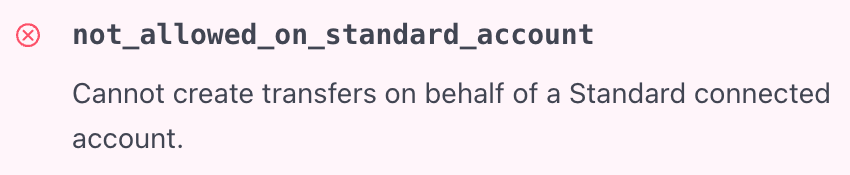
Cannot create transfers on behalf of a Standard connected account#
If your Stripe account is connected to another platform, transfers will fail and you will see this error in your Stripe error log:
"Cannot create transfers on behalf of a Standard connected account."
Cause
The active API key belongs to a Standard connected account, but Split Pay is attempting a platform transfer. That connected account is not the platform that owns the intended Connect relationship.
Common ways this happens:
- You created your Stripe account through WooCommerce’s built-in connection flow, which connected it to WooCommerce’s Stripe Platform.
- Your Stripe account is connected to another marketplace or SaaS platform.
- You’re using a Stripe account that was previously onboarded as a connected account for a different service.
Solution
Use a standalone Stripe platform account that owns the intended connected accounts.
- If you already have the correct platform, use its key rather than creating another account.
- If you do not, create the required platform through Stripe before configuring recipients.
- Point both the store gateway and Split Pay at the same platform, then verify its exact account ID under Connect Status.
Transfer amount below minimum#
“Transfer for Product #[product ID] to [account ID] was skipped — the amount ([amount]) is below Stripe’s minimum transfer amount.”
Cause
The calculated leg is below the minimum Split Pay and Stripe enforce for that currency at runtime. There is no one fixed minimum that is correct for every currency and account.
Solution
Increase that recipient’s percentage or fixed amount, raise the eligible order amount, or remove the rule. Then use the exact amount and currency in the order note when verifying the correction.
Insufficient balance for transfer#
“You have insufficient funds in your Stripe account”
Cause
Every Split Pay transfer, including a delayed one, is tied to its original platform charge through Stripe’s source_transaction field. Stripe can accept that transfer while the charge funds are pending, and Stripe’s processing fee does not create a universal 96% or 97% ceiling. The message alone therefore does not prove that automatic payouts drained the balance.
Solution
Read the latest order note, then verify the exact source charge ID, charge amount and currency, failed transfer amount and currency, and every earlier transfer tied to that charge. Correct only the mismatch that evidence identifies. Do not add funds or change automatic payouts based on this message alone. After the cause is fixed, WooCommerce’s Retry Split Pay Transfers action retries the failed leg while preserving transfers already proven successful.
The optional Stripe-fee allocation setting changes how new WooCommerce plans share the exact fee; it is not a universal balance-error fix.
Retry stopped because saved records could not be matched#
“Split Pay: this retry was stopped before sending anything because the saved transfer records could not be matched to Stripe. This safety stop avoids paying a vendor twice. Please contact Split Pay support.”
Cause
Split Pay cannot prove that the saved transfer plan, local record, and Stripe result describe the same attempt.
Solution
Do not click Retry again and do not create a manual replacement transfer. Keep the order unchanged, collect the order number, exact note, redacted charge and transfer IDs, and contact support so the existing Stripe result can be reconciled first.
Product recipient settings changed while the order was prepared#
“Split Pay: product recipient settings changed while this order was being prepared, so no transfer was attempted. Retry Split Pay Transfers after the product update finishes.”
Cause
A product, variation, Bulk Editor, FluentCart product, or Global Transfer Settings save changed the verified routing generation while WooCommerce was preparing this order. Split Pay stopped that plan before attempting a transfer so it could not mix old and new recipient settings.
Solution
Let the settings save finish, review the current product or variation rules, then use Retry Split Pay Transfers once. If the same note returns when no settings save is running, stop and contact support instead of creating a manual transfer.
Global Transfer Settings were restored#
“Split Pay could not save the complete routing form, so its previous settings were restored.”
Cause
Split Pay could not prove that every Global Transfer Settings value was saved, so it restored the earlier form as one unit. The Global Transfer Settings and Advanced tabs save one settings form, so this message can follow a save from either tab.
Solution
Confirm that the current Split Pay version is active, and don’t install an older version over it; see Activating Split Pay PRO. If the message still appears, do not keep saving or rely on the unsaved values for new orders. Open WooCommerce → Status → Logs, select source split-pay, and find the entry beginning Global Transfer Settings save was rolled back:. Use that exact reason to correct the cause, or send the message and redacted log entry to support.
Cross-border transfer failed#
“The destination account cannot receive transfers from this country” (or the exact country/currency restriction Stripe returns)
Cause
Stripe rejected the current platform, connected-account country, currency, or capability combination. These rules are provider- and account-specific and can change.
Solution
Open Split Pay → Connect Status and confirm the exact platform and recipient account IDs for the active mode. Use the exact Stripe error to determine whether that connected account can receive the requested transfer; do not rely on email address or business name as identity proof. See International Transfers.
Destination account deauthorized by Stripe#
“Split Pay: [transfer] to [account ID] FAILED: destination account deauthorized by Stripe”
Cause
Stripe reported that this connected account was disconnected from your platform, so Split Pay put it on its list of accounts it has stopped paying. Split Pay skips every transfer to that account without sending a request to Stripe.
Solution
Ask the vendor to reconnect their Stripe account, then confirm it is ready on Connect Status. Open Split Pay → Platform Status and click Unblock next to the account in the Vendor accounts Split Pay has stopped paying card. Unblocking moves no money; transfers to the account resume on later orders. For a WooCommerce order that already failed, use Retry Split Pay Transfers, unless you already paid that vendor by hand in Stripe. See Accounts Split Pay has stopped paying.
Call to undefined method WC_Stripe_Logger::log()#
This fatal error comes from an outdated Split Pay version on a site that runs Payment Plugins for Stripe WooCommerce (woo-stripe-payment) or FluentCart without the official WooCommerce Stripe Payment Gateway:
"Call to undefined method WC_Stripe_Logger::log()"
Cause
The legacy WC_Stripe_Logger::log() method ships only with the official WooCommerce Stripe Payment Gateway, so it doesn’t exist when that gateway isn’t installed. Split Pay doesn’t depend on it: it writes its log through WC_Stripe_Logger::debug() when that exists, and otherwise through PHP error_log().
Solution
Update Split Pay to the current version. See the Payment Plugins for Stripe WooCommerce integration page.
Transfers admin tab is empty even though Stripe shows transfers#
The Split Pay → Transfers tab is empty, or missing rows, while the Stripe Dashboard shows successful transfers under Connect → Transfers.
Cause
The Transfers tab lists only the rows recorded for the Stripe mode you’re viewing, Test or Live. A row without a recorded mode doesn’t appear in either list. Split Pay records the mode on every transfer row it writes, and when it is updated from a version that left the mode empty, it fills in the mode on those earlier rows once, automatically.
Solution
Switch the Transfers tab to the mode the orders were paid in. If rows are still missing, update Split Pay to the current version. No manual database change is needed.
Vendor selection on a product disappears after Save#
You select a vendor on the Split Pay tab of a WooCommerce product, save, and the selection is gone when the page reloads.
Cause
Split Pay keeps a vendor selection that you save before entering a percentage or amount, so you can build a product’s configuration in stages. It also keeps the product’s vendor, percentage and shipping values when the product is saved without the Split Pay tab — a variable product’s parent save, a programmatic or WooCommerce REST save, or a save by another plugin. An outdated Split Pay version can erase the selection in these cases.
Solution
Update Split Pay to the current version. To rebuild product settings that an outdated version erased, see Recovering Lost Product Settings. If the dropdown shows the placeholder but the vendor is still saved, see Selected vendor is missing from the dropdown after Save.
Selected vendor is missing from the dropdown after Save#
After you save a product, its Split Pay dropdown shows acct_xxx (not in synced accounts — re-sync or re-select) instead of the vendor’s name.
Cause
The dropdown lists the accounts in Split Pay’s synced account list. When the account saved on the product isn’t in that list — for example, the list wasn’t refreshed after the account was connected, or you switched to a different Stripe platform account — Split Pay still shows the saved account ID with this label, so the saved value stays visible and nothing is lost.
Solution
Open Split Pay → Connect Status, confirm the active mode and platform, then click Refresh from Stripe. The label disappears once Stripe returns the account. If the account belongs to a different platform, select the right account on the product instead.
Transfers tab fatal: Call to a member function get_transaction_url() on null#
Opening Split Pay → Transfers on an outdated Split Pay version can crash with a fatal error rendered mid-table:
“Uncaught Error: Call to a member function get_transaction_url() on null”
Cause
Each Transfers row links to the originating charge in the payment gateway’s dashboard, using the gateway recorded on the row. When that gateway can’t be loaded — its plugin was deactivated after the transfer, a third-party gateway registers something that isn’t a gateway object, or the row has a stale gateway ID — Split Pay leaves out that charge link and still shows the row and its Stripe Dashboard transfer link.
Solution
Update Split Pay to the current version.
Percentage transfers are 100× too small with Name Your Price plugins#
On a store using WPC Name Your Price, WooCommerce Name Your Price, or another “customer chooses the price” plugin, a percentage transfer is far smaller than expected — for example, an 80% split on a $100 customer-chosen-price order transfers only $0.80 instead of $80.
Cause
The percentage was applied to the product’s configured base price — often a $1 placeholder set by the Name Your Price plugin — instead of the customer-chosen line subtotal. Split Pay takes the unit price from the saved WooCommerce order-line subtotal, so this happens only on an outdated Split Pay version.
Solution
Update Split Pay to the current version. Coupon discounts reduce the order-line base only when Adjust transfer amounts for coupons is enabled.
This applies to compatible chosen-price, deposit, or donation plugins that save the overridden price in the WooCommerce order-line subtotal. See Name Your Price & Customer-Chosen-Price Plugins and Coupon Handling.
If you continue to experience errors not listed here, please visit our Troubleshooting page or contact support at support@gauchoplugins.com.