
How Stripe Transfers Work
Understand how Stripe Connect Transfers API works, the difference between platform and connected accounts, and common use cases for splitting payments — on either WooCommerce or FluentCart.
Platform vs connected accounts#
The short version: your Stripe platform account receives the customer’s charge, and Split Pay creates separate transfers to the connected accounts in your saved rules.
- Platform account — your Stripe account. It owns the customer charge and Stripe deducts the charge’s processing fee from it.
- Connected accounts — the Stripe accounts that receive Split Pay transfers. They belong to vendors, suppliers, partners, or other recipients connected to your platform through Stripe Connect.
Payment flow#
Here’s what happens after a supported WooCommerce or FluentCart order is paid:
With the default gross calculation, a $100 eligible product and a 70% rule create a $70 vendor transfer. Stripe’s exact processing fee remains a cost on the platform account, so your platform keeps $30 before that fee.
Gross calculation is the default. A charge-bound transfer can use up to the captured charge amount; Stripe fees do not create a universal 97% transfer limit.
Optional Stripe-fee allocation PRO#
WooCommerce only. On Split Pay → Advanced, under Advanced transfer options, turn on Deduct Stripe’s actual processing fee from WooCommerce connected-account transfers when recipients should share the exact fee instead of receiving their full gross amounts, then click Save Changes. The setting is off by default and applies only to new transfer plans.
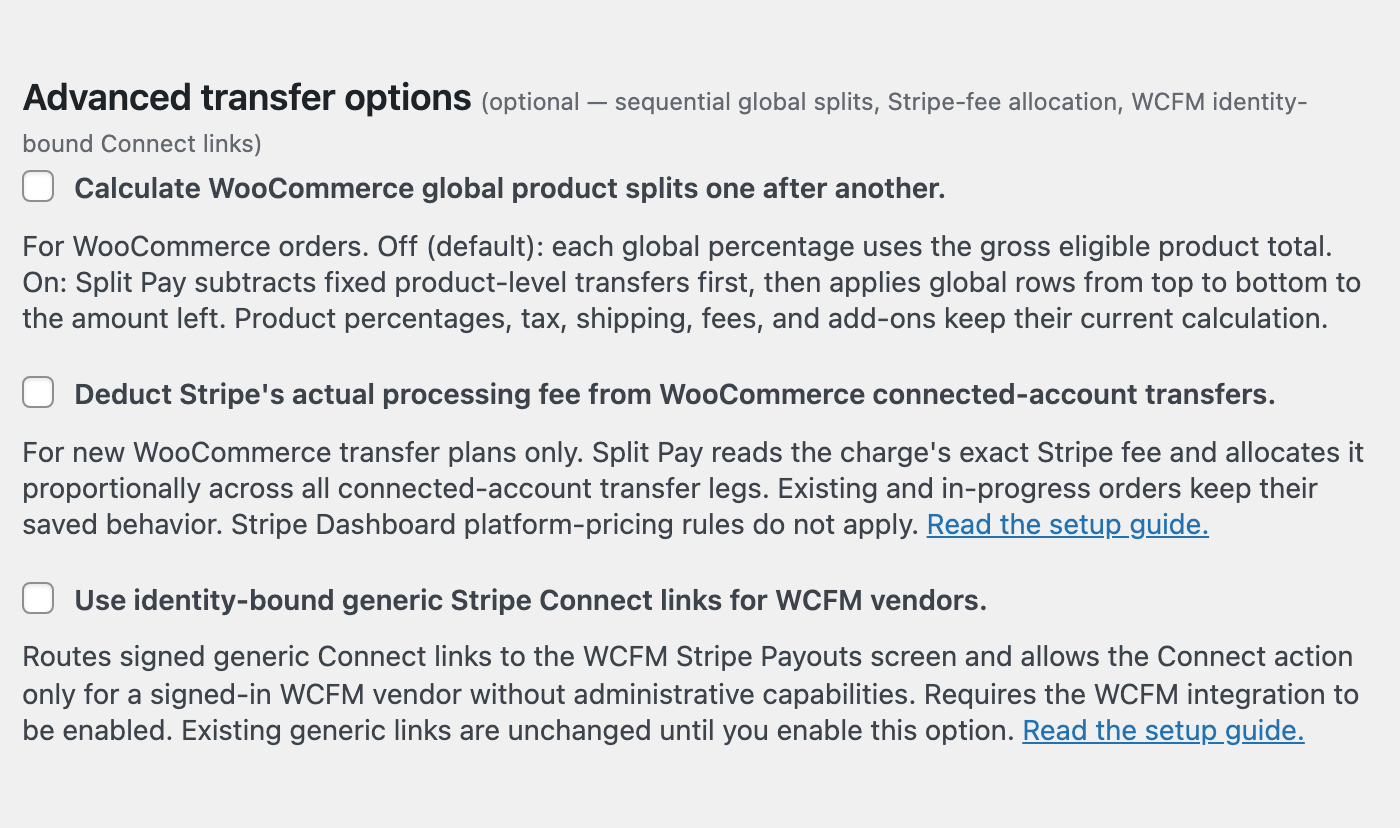
- Split Pay reads the charge’s exact Stripe fee in its settlement currency.
- It allocates that fee proportionally in currency minor units with a capped largest-remainder calculation, keeping every transfer leg at or above the runtime minimum calculated for that leg.
- If the exact fee exceeds the legs’ combined safe capacity, or the allocation cannot be proven exactly, Split Pay stops before sending any transfer.
- It saves the resulting net plan before sending any transfer. Retries and refunds continue to use the amount actually transferred.
| Example | Vendor A | Vendor B | Total sent |
|---|---|---|---|
| Fee allocation off: planned $60 + $40 | $60.00 | $40.00 | $100.00 |
| Fee allocation on: exact fee is $3.20 | $58.08 | $38.72 | $96.80 |
In the second row, the 60/40 transfer plan receives 60% and 40% of the exact fee: $1.92 and $1.28. Stripe still charges the platform account; Split Pay reduces the vendor transfers by those saved shares.
Existing and in-progress WooCommerce orders keep their saved behavior, and FluentCart is unchanged. If Split Pay cannot establish the exact fee or save a safe plan, it stops before creating a new transfer instead of estimating. Orders paid with a non-card method stop this way every time; see Known limitations, which also covers what a Retry does after this stop.
Platform pricing is different. Stripe Dashboard platform-pricing rules do not apply to Split Pay’s separate transfers. This option deducts the charge’s actual processing fee, not a custom percentage-plus-fixed fee. Your platform keeps the amount left after your configured transfers; Split Pay does not create a Stripe application-fee entry.
Charge-bound and delayed transfers#
Every Split Pay transfer is tied to the successful platform charge through Stripe’s source_transaction field. The optional Delay Transfers setting changes only when a WooCommerce transfer is requested: Split Pay waits until the order becomes Completed, then still creates the transfer against that original charge. Stripe can accept a source-bound transfer while the charge funds are pending. That does not guarantee later headroom after the charge has settled; if funds have already left the platform balance or earlier transfers used the charge amount, Stripe can reject the delayed request.
A Stripe charge ID starts with ch_ or, for non-card payments such as iDEAL, SEPA Direct Debit and Bancontact, py_. Split Pay transfers from both. To pay a py_ order that stopped before any vendor was paid, see Orders stopped before any vendor was paid.
The transfers API vs direct & destination charges#
Split Pay uses Stripe’s separate charges and transfers model. It does not convert your checkout to direct or destination charges.
| Approach | Who processes the payment? | Who pays Stripe fees? | When is the split defined? |
|---|---|---|---|
| Transfers API (Split Pay uses this) | Platform | Platform | After the charge succeeds |
| Destination Charges | Platform | Platform | At the time of the charge — the split is defined in the charge request |
| Direct Charges | Connected account | Depends on the connected account’s Stripe fee-payer configuration | At the time of the charge — customer pays the connected account directly |
Why the transfers API?
This model lets Split Pay work after your supported store gateway has processed checkout:
- Your normal WooCommerce or FluentCart checkout remains in place.
- One platform charge can fund multiple connected-account transfers.
- Split Pay can calculate global, product, shipping, tax, order-fee, and supported add-on legs independently.
Use cases#
Use Split Pay when your platform processes the customer charge and then pays other parties.
Marketplace commission
Pay each vendor a percentage or fixed amount and keep the remainder on your platform.
Vendor & supplier payouts
Send a supplier a fixed amount per unit or a percentage of each eligible product sale.
Partnerships & revenue sharing
Divide eligible revenue among one or more connected partners.
Fundraising & donations
Forward some or all of an eligible WooCommerce payment to a connected organization. With fee allocation off, your platform still bears the Stripe fee.
See Examples for worked calculations.
Region restrictions#
Stripe controls which platform and connected-account country combinations can transfer in each currency. Verify the exact platform country, recipient country, currency, and Stripe error against Stripe’s current rules; Connect Status does not validate the country corridor. See International Transfers for the current verification path.
Best fit for the transfers API#
Split Pay fits stores where:
- Your platform processes the payment and then distributes funds to other parties.
- You need to split a single payment across multiple recipients.
- You want rules for products, shipping, tax, fees, or supported add-ons.
If your checkout must create the customer charge directly on a connected account, Split Pay is not the matching charge model.
How to Transfer Payments ›